Introduction of Rhinoceros
1. Open Rhinoceros
Find the icon of Rhinoceros 5 (64-bit) OR Rhinoceros 4.
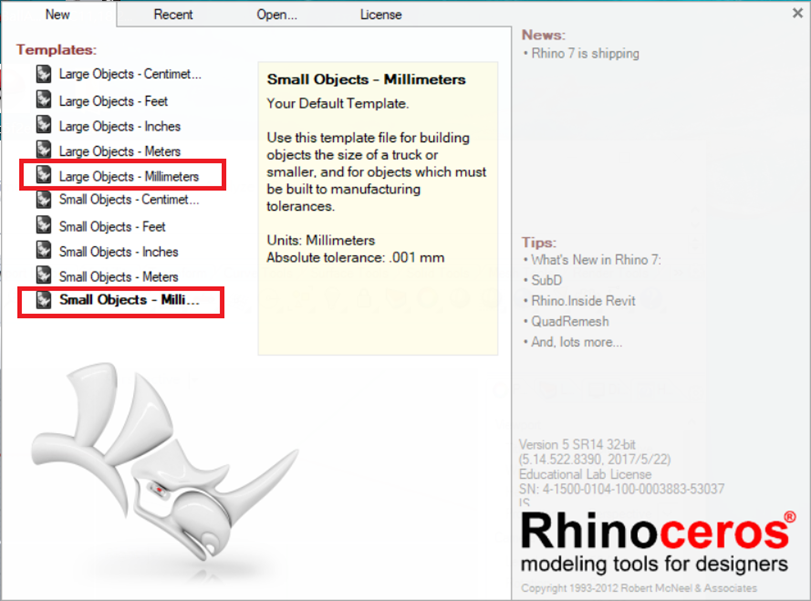
When you open Rhinoceros, choose a template, you can choose:
- Large Objects - Millimeter OR
- Small Objects - Millimeter
2. User Interface
There are three main parts in the user interface:
- Command line
- Object Snap
- Status bar
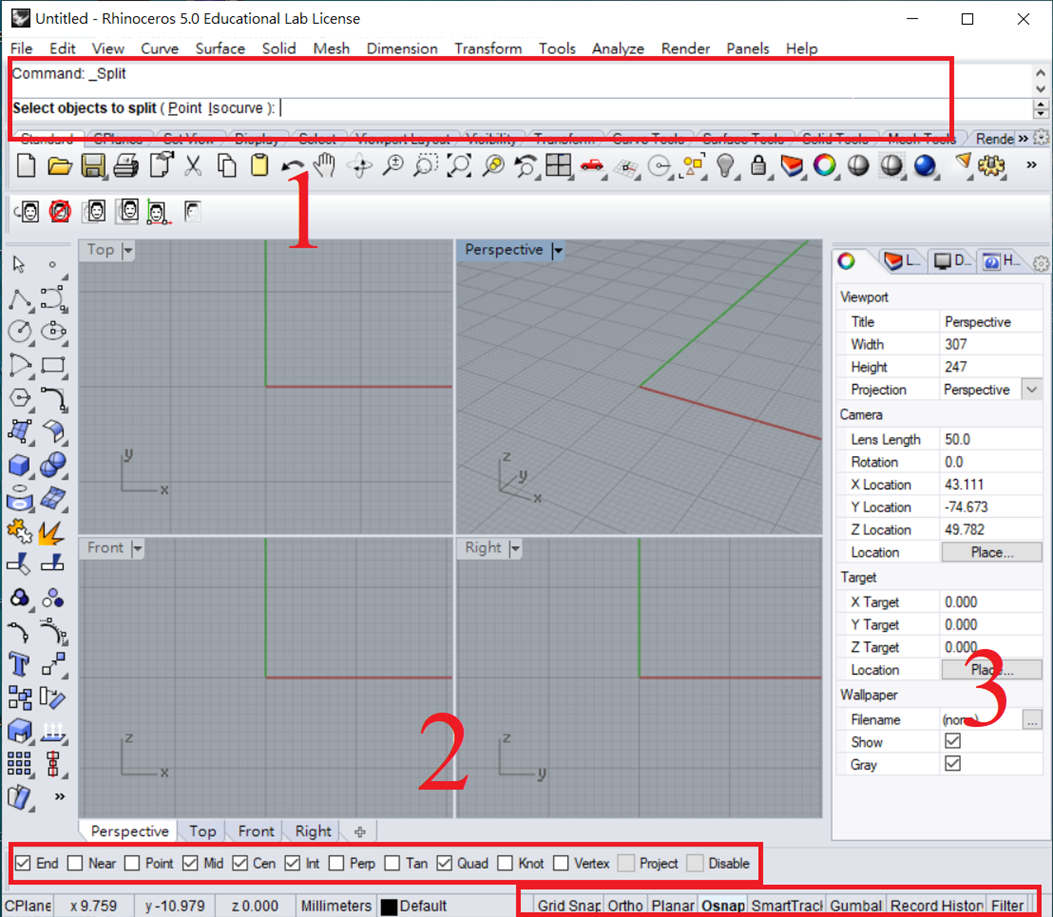
1. Command line
- General drawing software has many functions, which are distributed across multiple interfaces. Usually, there will be a search bar or command line to facilitate users in entering commands directly.
2. Object Snap

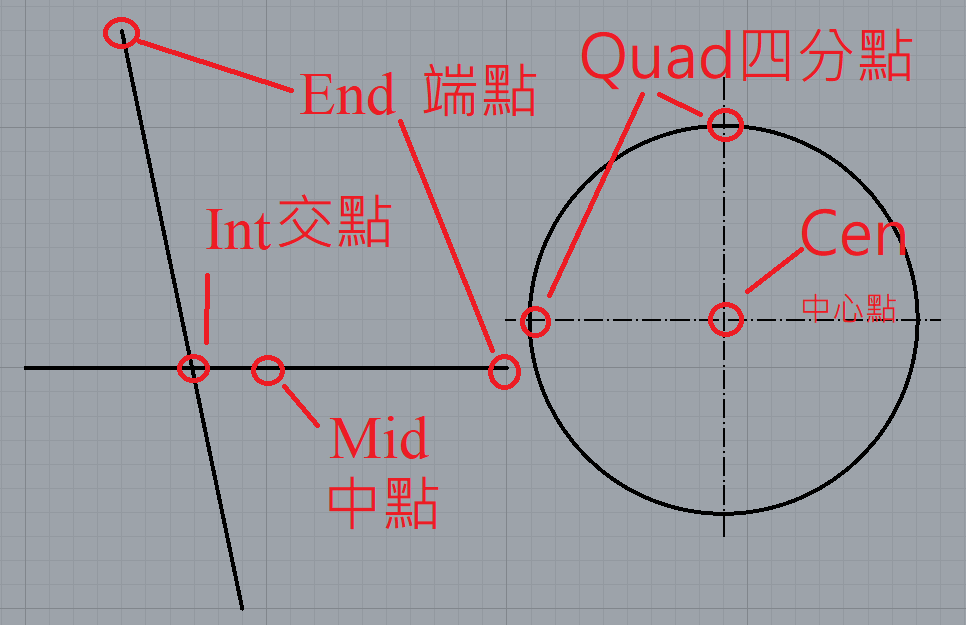
- We need to focus on
Osnap, which is物件鎖點in Chinese(You can see the English and Chinese version on the above graph) - Also,
Grid Snap(鎖定格點)feature is usefully

Osnapstand for "Object Snap", which can snap(鎖定)the special point in the geometry
Start to draw
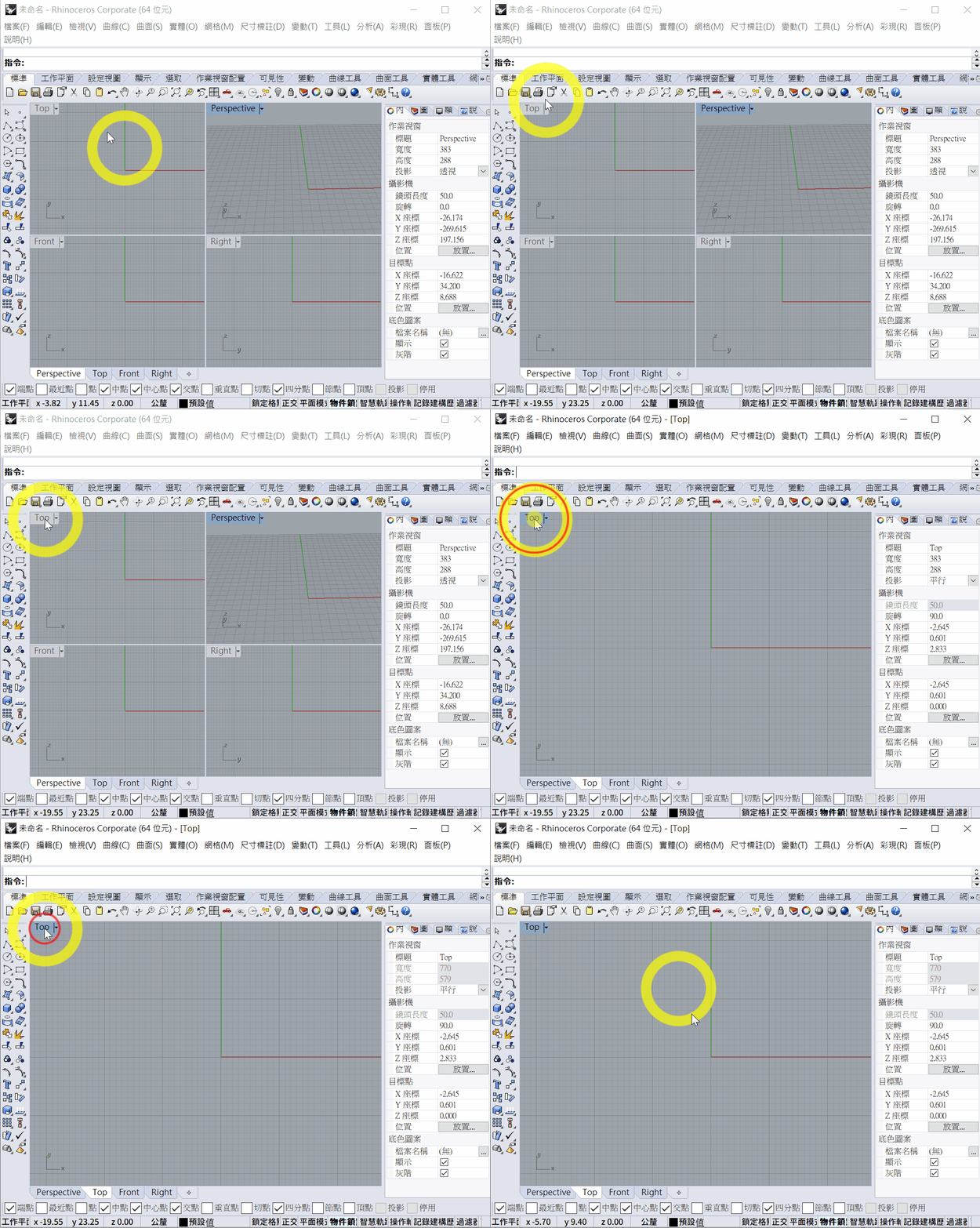
- Only focus on the TOP view, ==DOUBLE CLICK== the
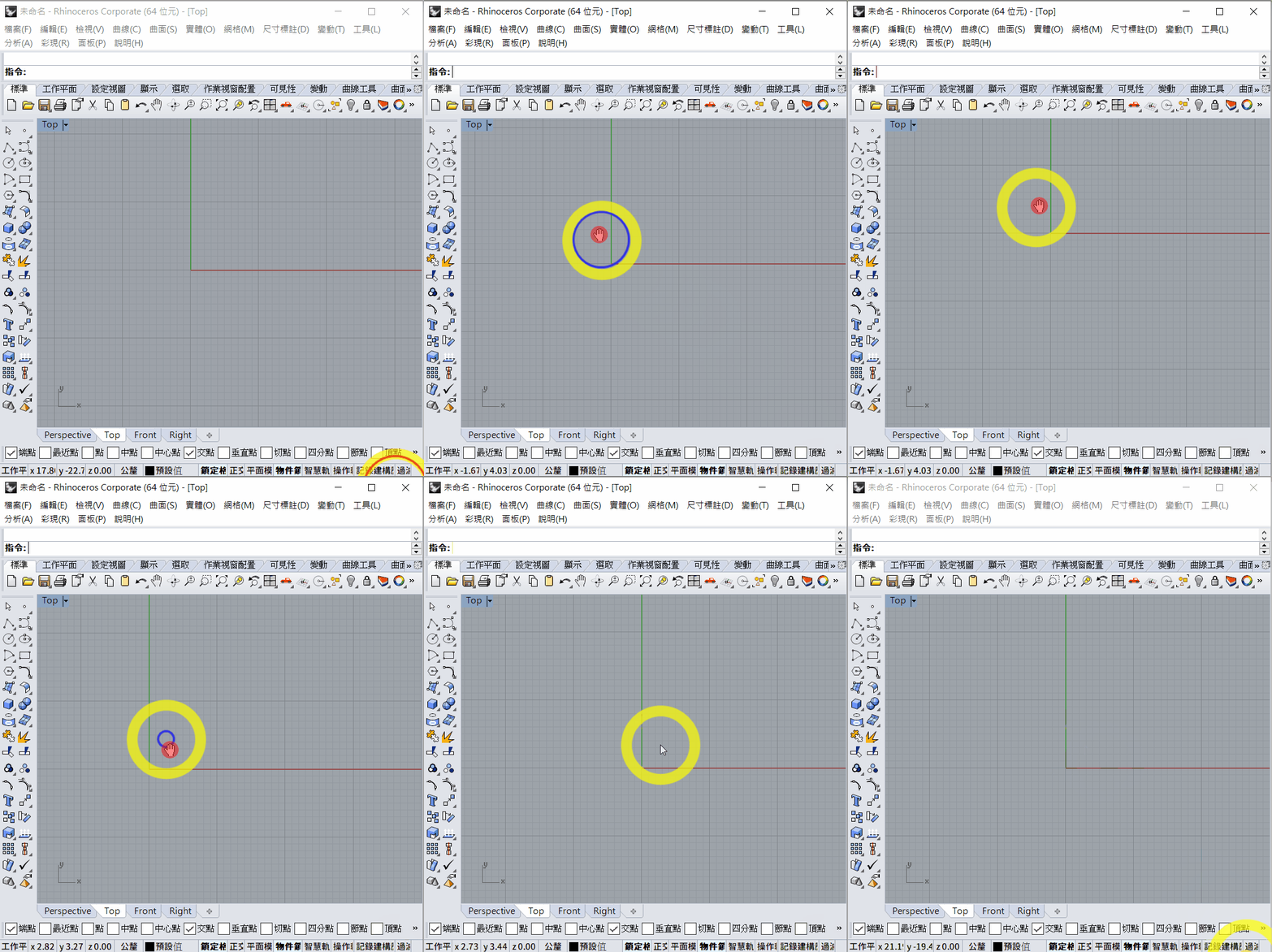
TOPicon - Hold mouse right click to drag the view
1. Line/Polyline
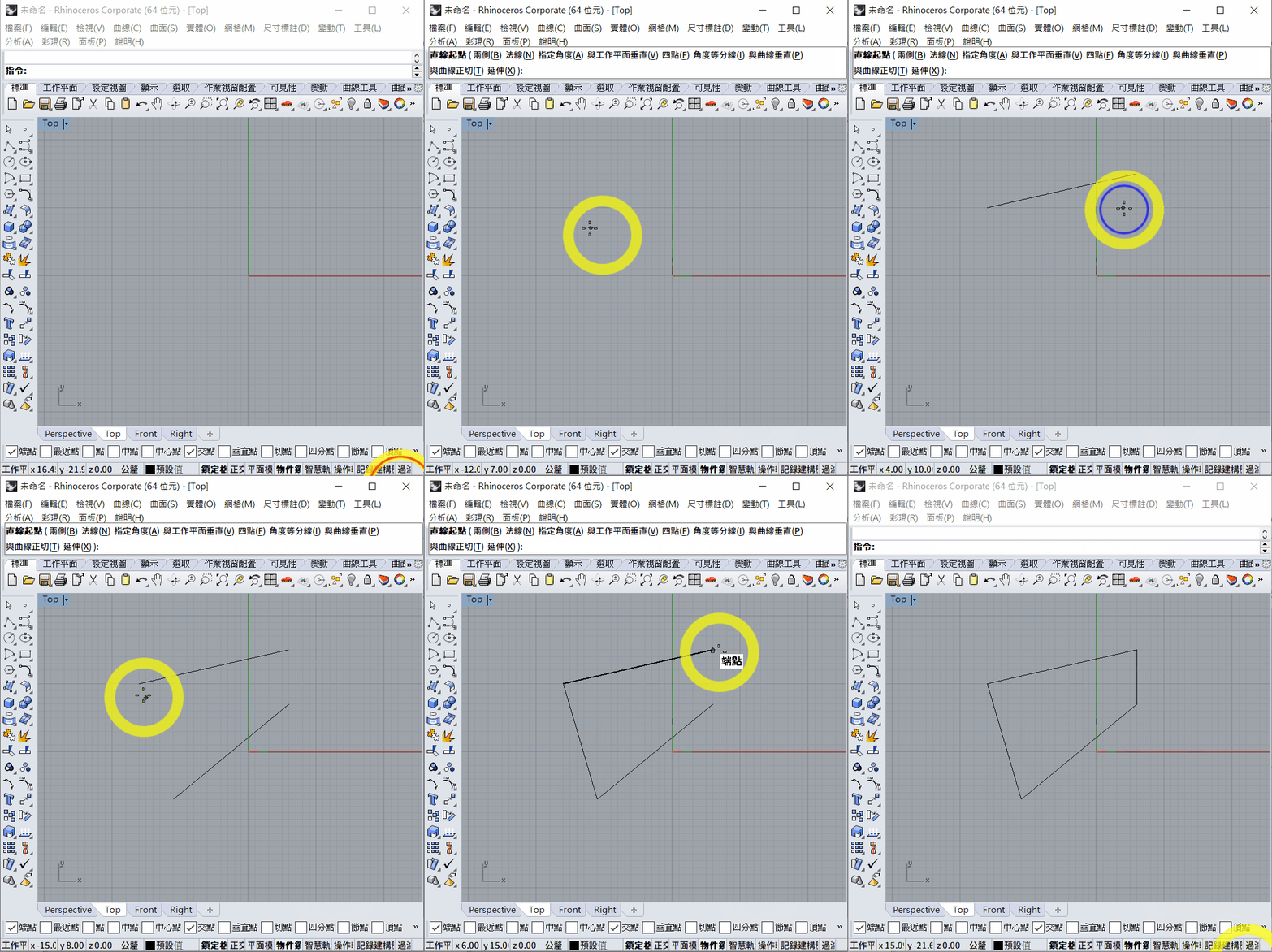
Line
- Type command
lineto draw line - First select the start point of line
- Then select the end point
- If you want to repeat the
linecommand, simply click right click of mouse OR press the spacebar of keyboard
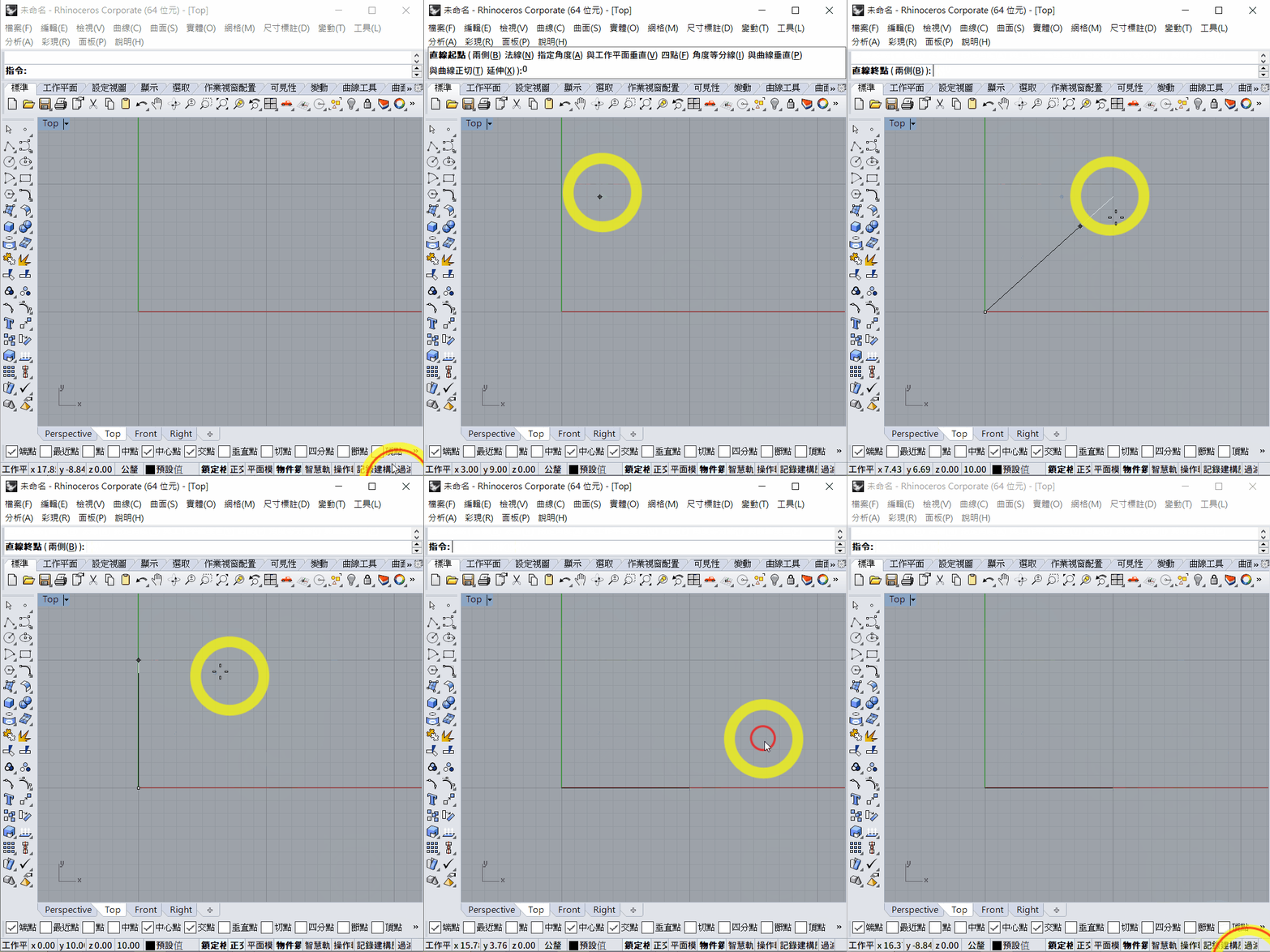
To draw a line with certain length:
- You can select the first point
- Then input the length of the line, e.g. 10
- There will be a white line to link the curser, but the black line to show the 10mm length
- Hold the key
SHIFTto define the line horizontal(水平) or vertebral(垂直) - Click the mouse left click to confirm the line
To draw a line with certain angle and length:
- You can first select the start point
- Input
<60and pressENTERto constrain the line 60 degree along the x-axis - Input
10and pressENTERto constrain the length of line as 10mm - Click mouse left to confirm and finish
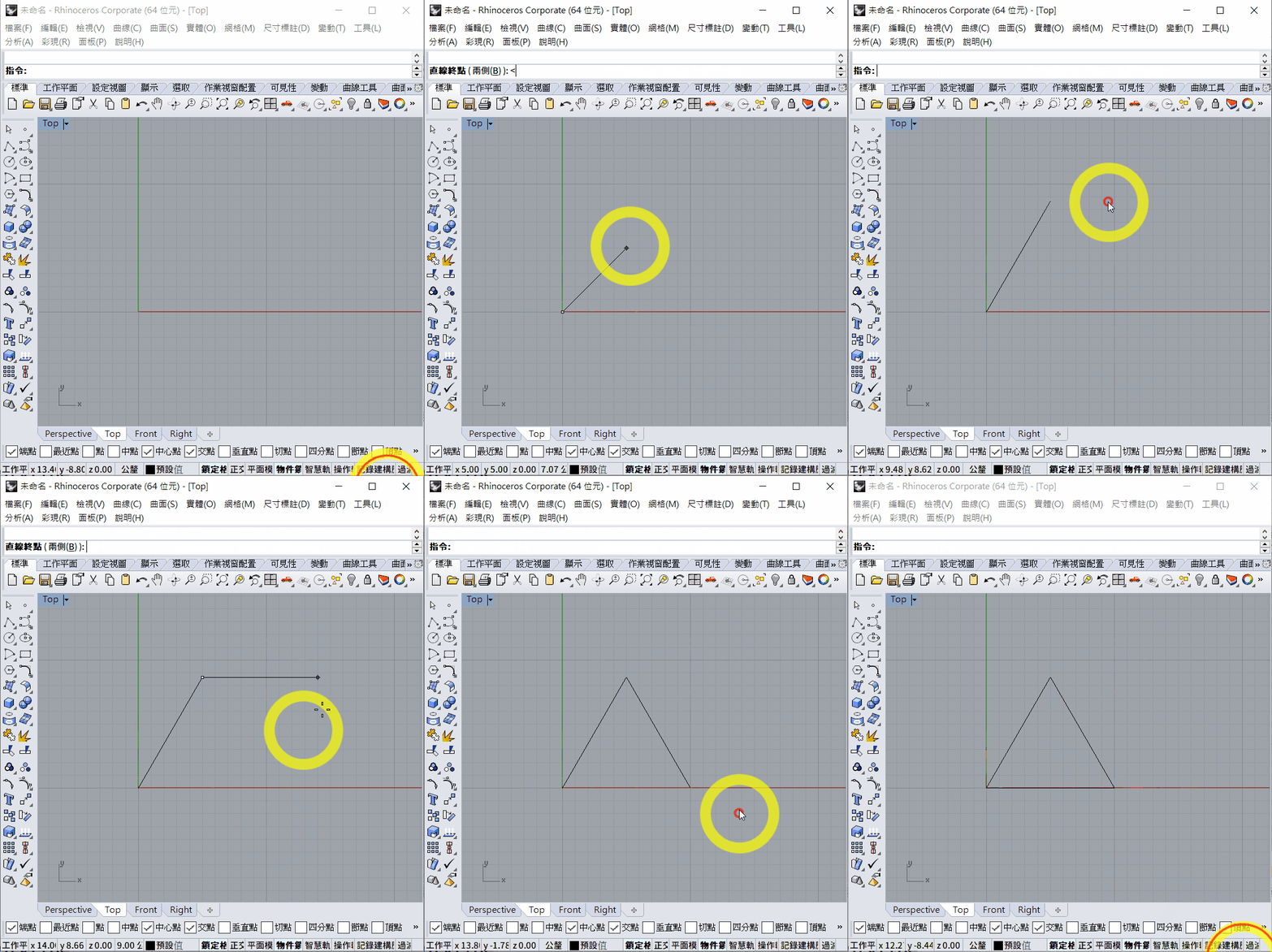
Polyline
If you want to draw a few continues line segment, you can use command polyline
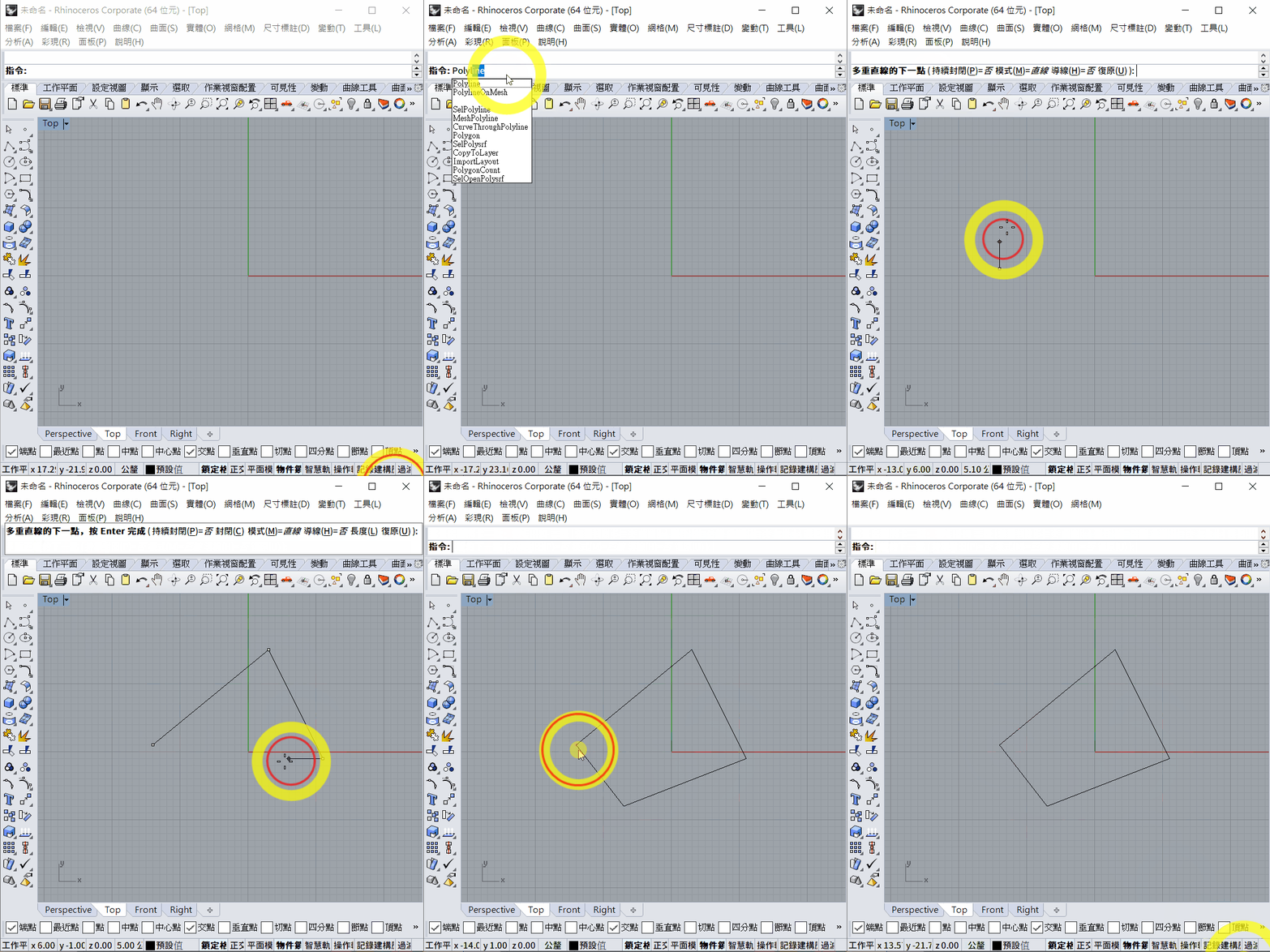
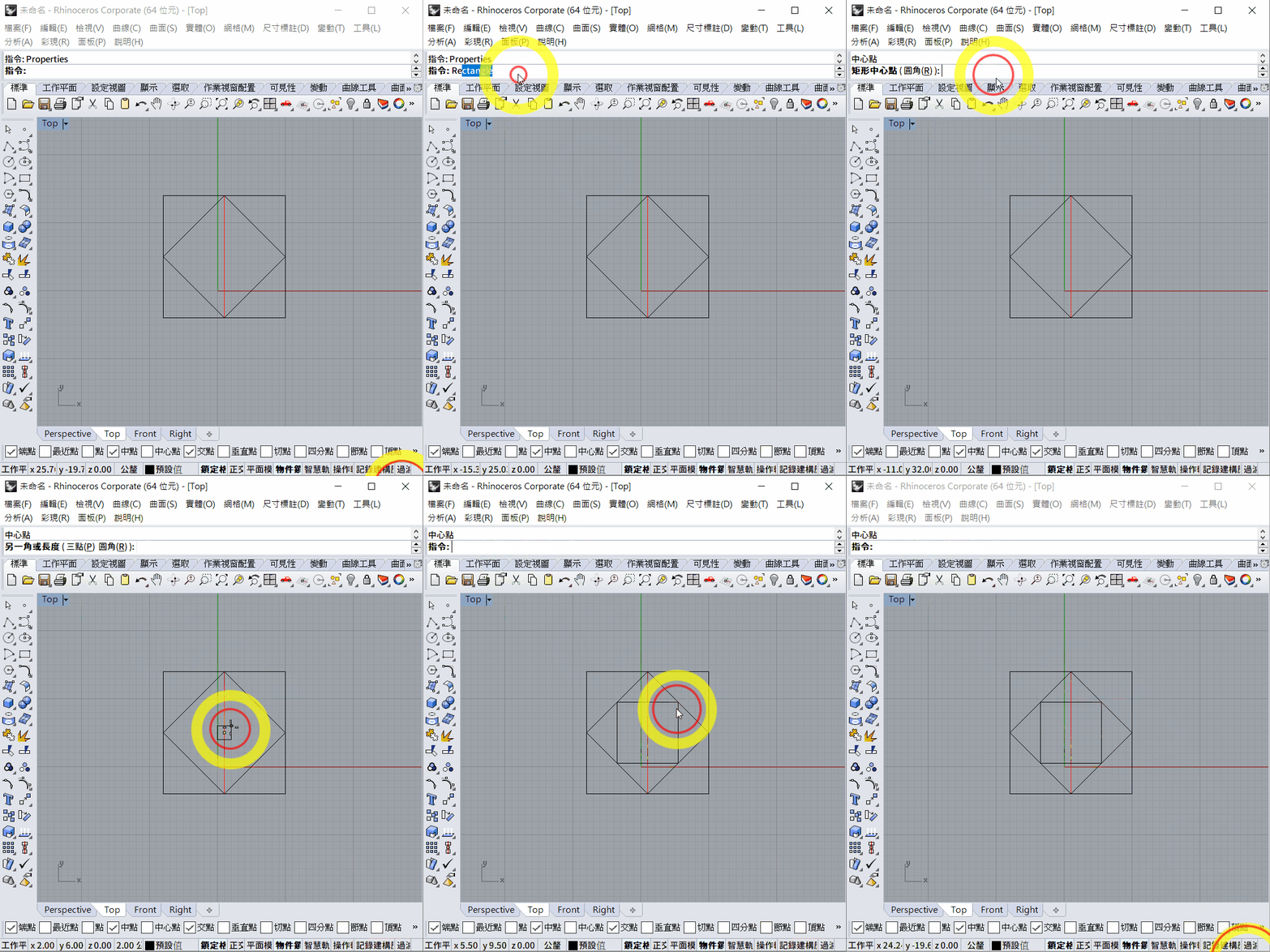
2. Rectangle
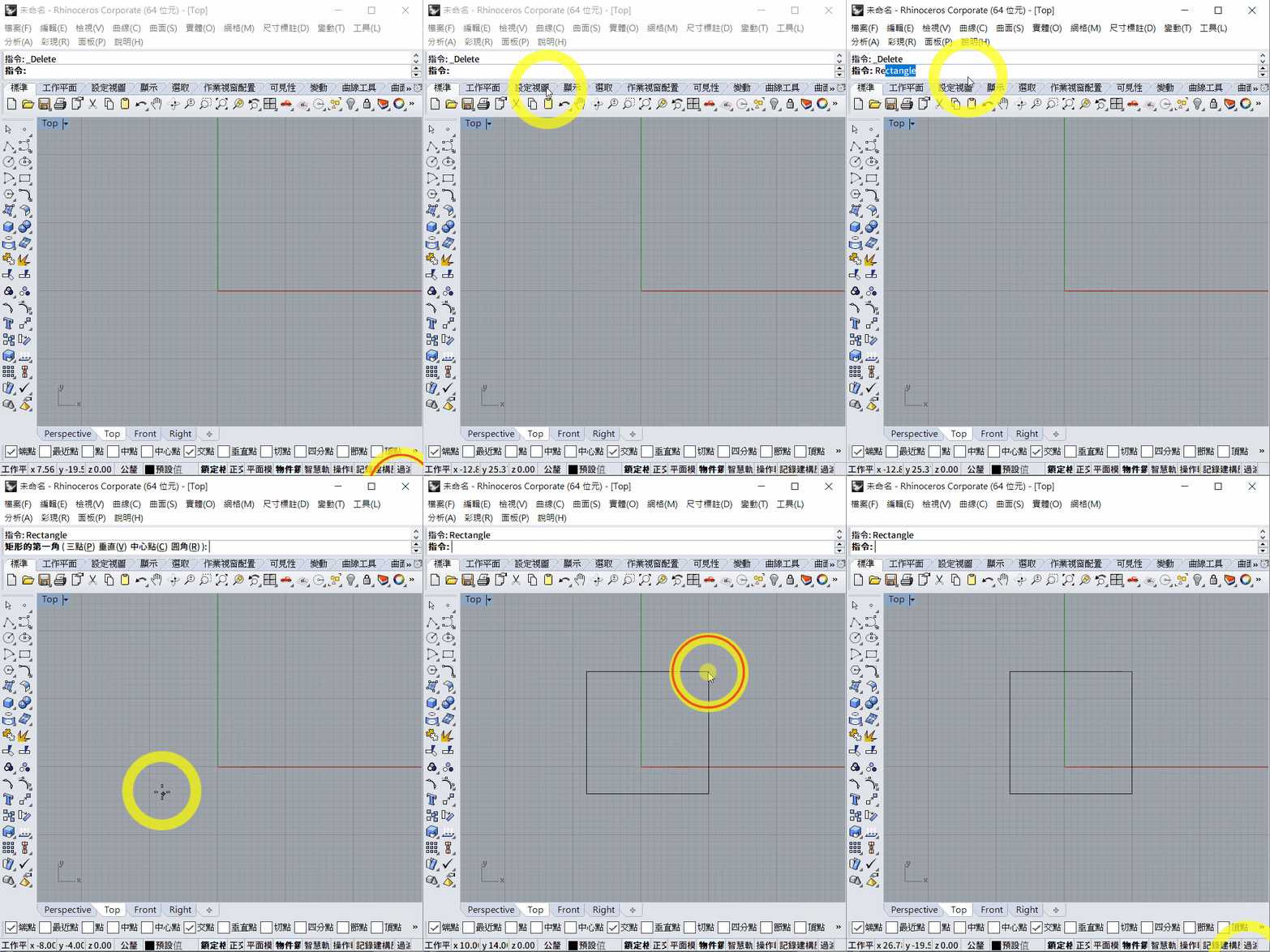
- Use command
rectangleto draw rectangle - There are 3 method to draw:
Diagonal mode
The default mode is diagonal mode, just select the 2 corners of the rectangle
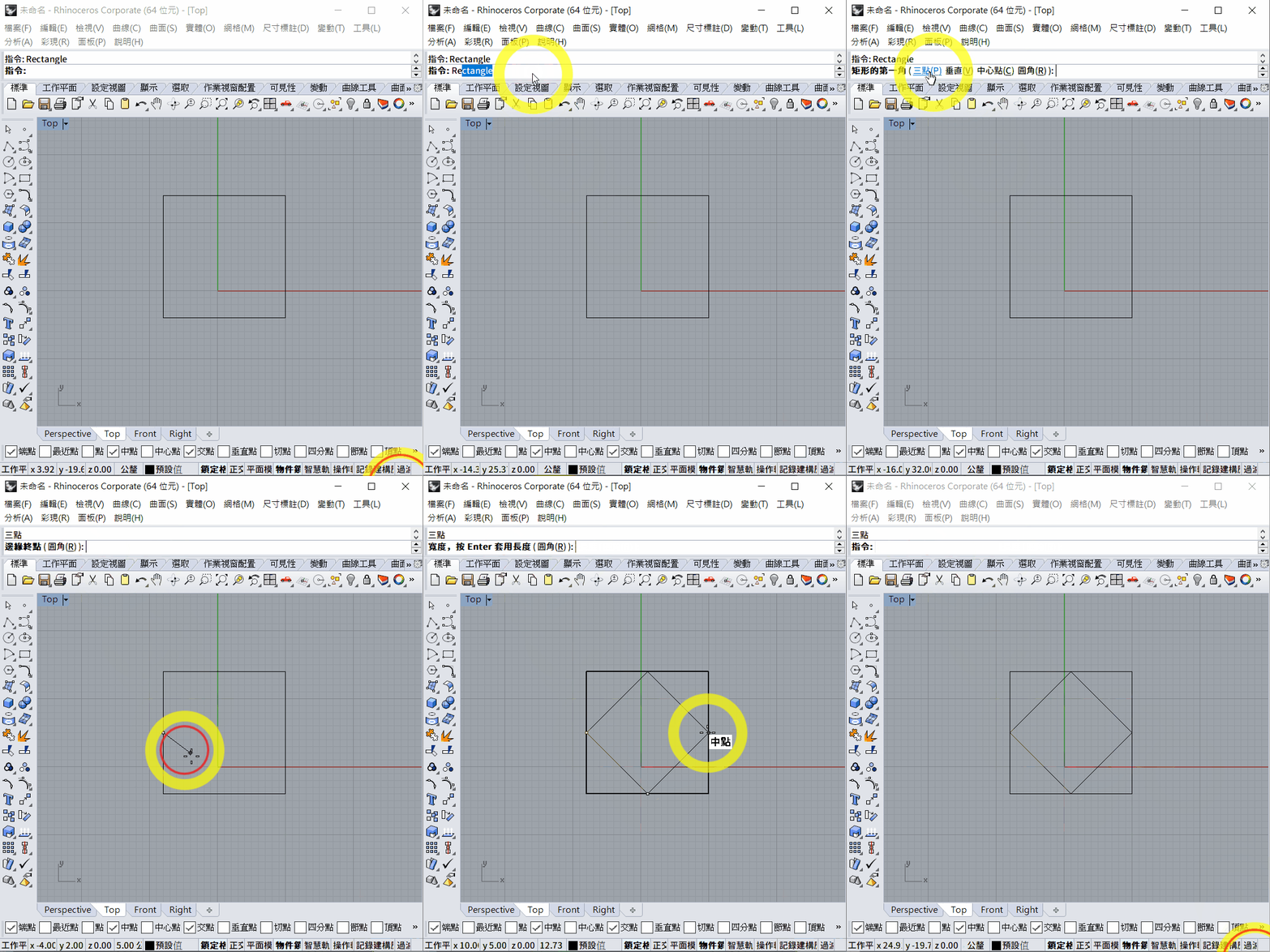
3 point mode
You can type command P after the command rectangle, or just click the 3 point in the command line, then you can use 3 point to define a rectangle
Center mode
Or you can use center method, define the center point of the rectangle, then define the corner
3. Circle
- Use command
circleto draw circle: - There are a few method:
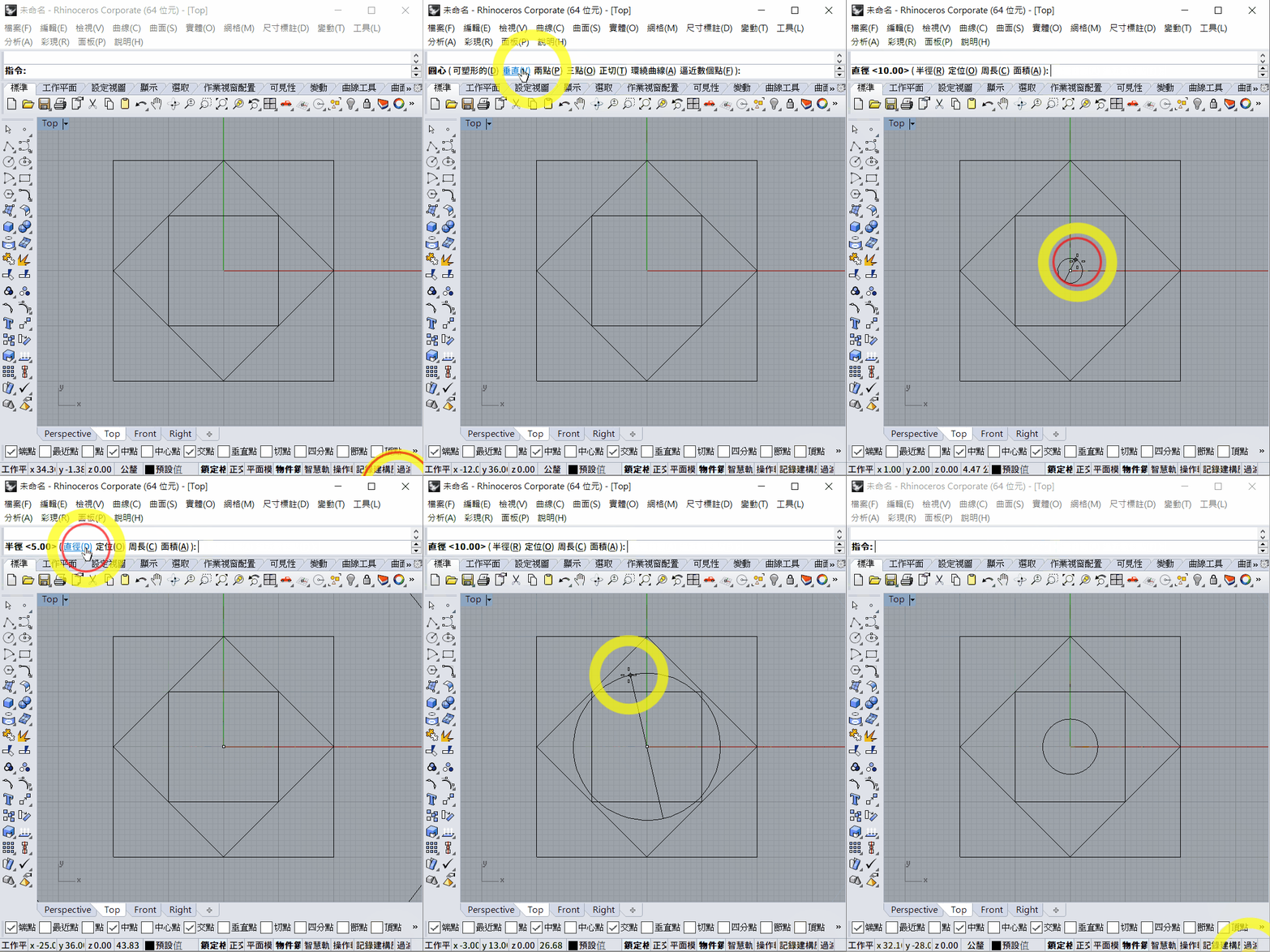
Center mode
The default mode is center mode, first select the center point of circle, then use command R or D to define the radius or diameter of the circle
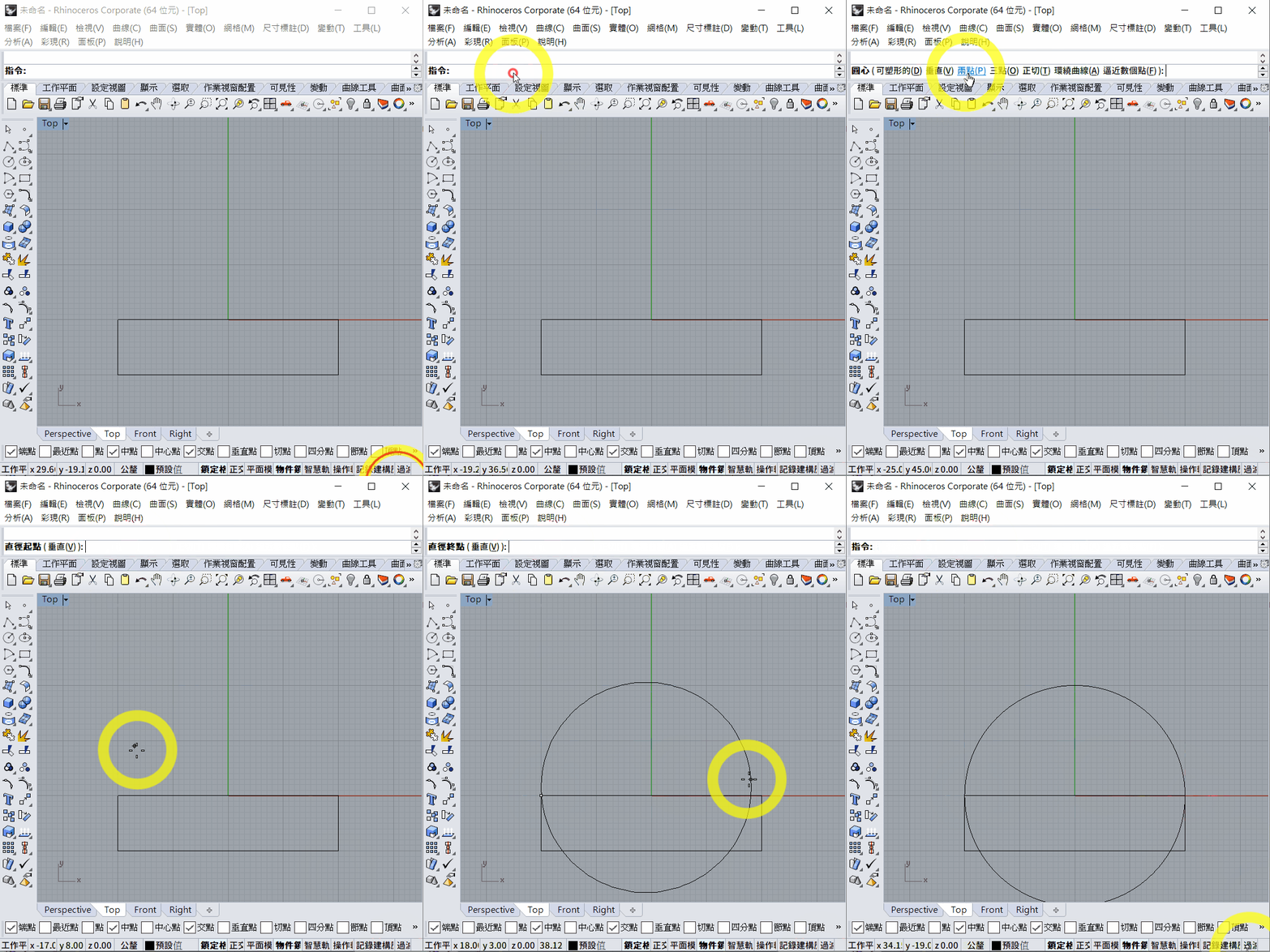
2 point mode
Or use 2 point mode, define 2 points as the diameter of the circle
4. Trim
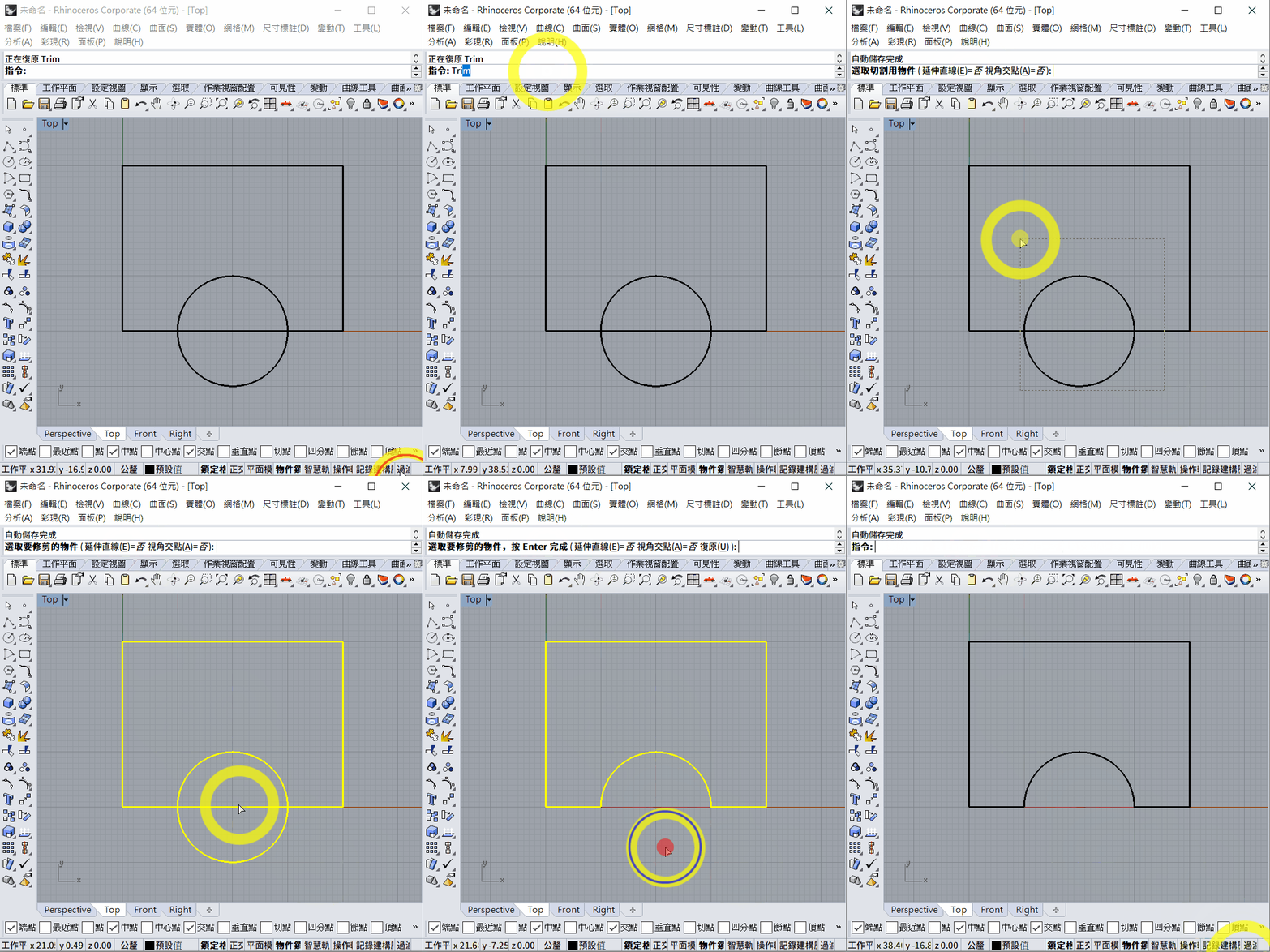
Use the command Trim to trim the extra line.
- Type command
Trim - Select the objects that you want to trim, then press
spacebar,ENTERORmouse right clickto confirm - Select the segment that you want to trim to delete it, press
spacebar,ENTERORmouse right clickto finish.
Exercise
- Each grid is 10x10mm
PDF version here --> [week 1.pdf](week 1.pdf)
