Preparation
Introduction to Fusion 360
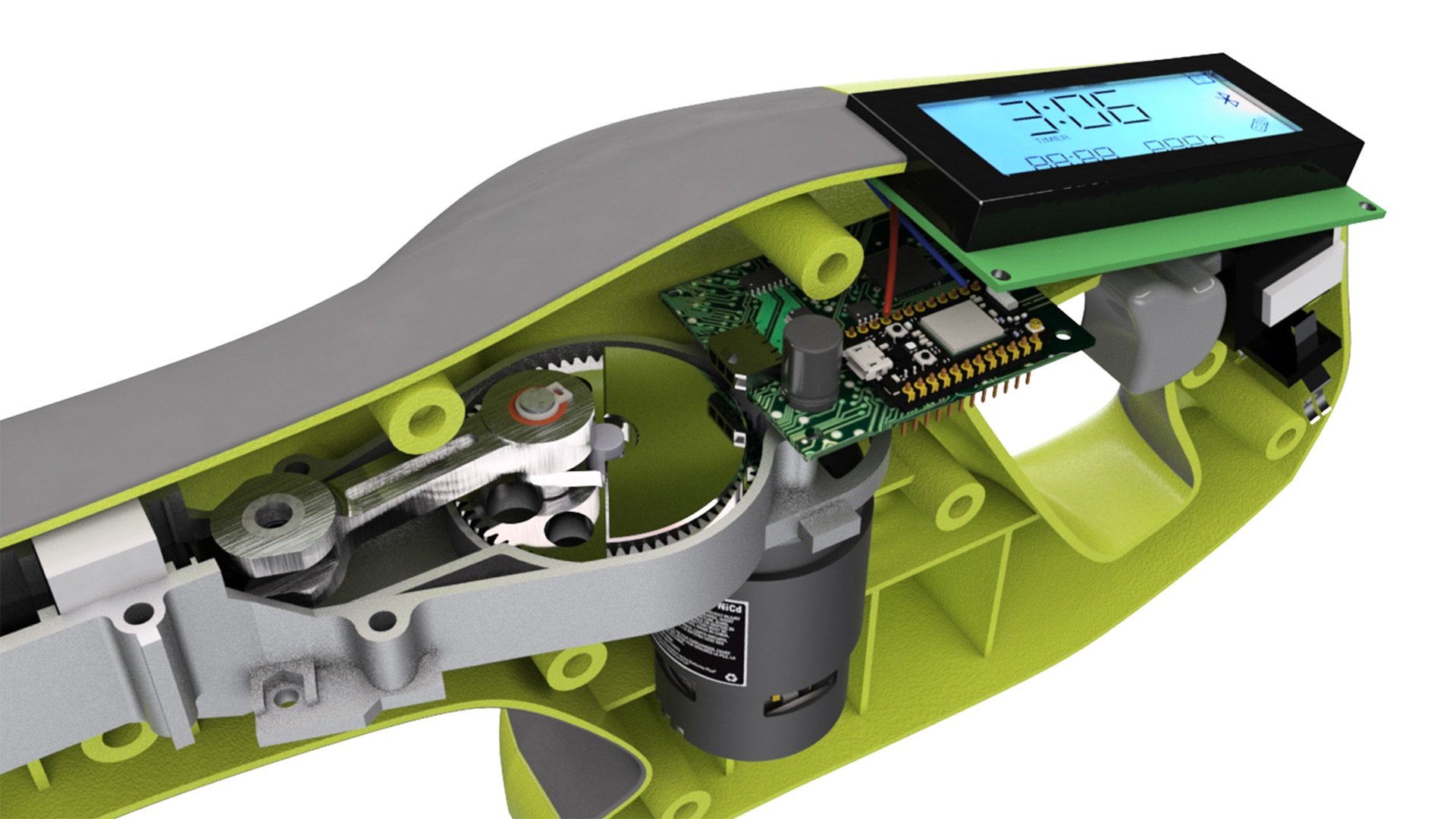
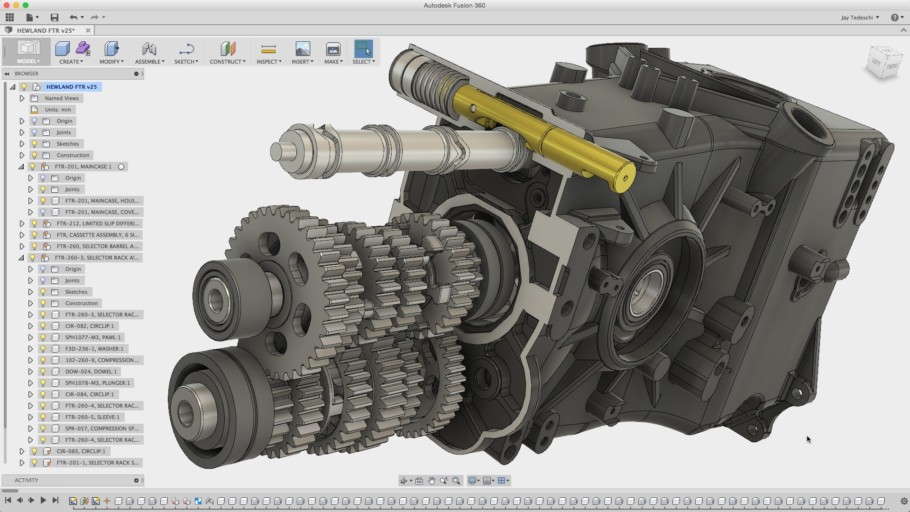
- Fusion 360 is 3D parametric modelling software developed by Autodesk.
- AutoCAD is a classic 2D drafting application. Its 3D tools are not based on the same feature-editing workflow, so creating complex 3D models can be more difficult.
- Inventor is an earlier Autodesk parametric modelling application aimed at mechanical engineers and competes with software such as SolidWorks and Solid Edge.
- Designing a 3D part in feature-based software is a little like programming: you define variables and build the result one step at a time.
- Fusion 360 is a lighter, web-connected alternative to Inventor. Autodesk's trial periods and personal-use terms have changed over time; check the current official terms before registering.
- Fusion 360 is popular with makers and incorporates capabilities from Autodesk EAGLE, its PCB-design software.
- Inventor is better suited to advanced mechanical-engineering users. Fusion 360 is friendlier to beginners and its PCB tools make it particularly useful for electromechanical projects.
Registering for an Education Licence
- Since more restrictions were added to the personal edition of Fusion 360, applying for an education licence has become increasingly important.
- Students are encouraged to apply so that available educational resources are not wasted.
- The registration process has become more involved. The steps below record the process as it appeared in September 2021, so the current Autodesk website may differ.
⚠️WARNING
Enter accurate information. Autodesk's verification process has become stricter, and a mismatch between your form and uploaded documents may prevent a successful registration.
Step 1
- Search Google for
Fusion 360 education. - Find the page titled Fusion 360 | Free Software for Students and Educators.
- You may also find the Cantonese registration tutorial shown below, created by an instructor in Hong Kong.
.png)
Step 2
- On the website, find the prominent GET STARTED button.
- Click it to begin registration.
.png)
Step 3
- Select
Macauunder Country. If it is unavailable, selectChina. - Select
Studentunder Educational role. - Select
High School/Secondaryunder Institution Type. - Enter your real date of birth. It may be used to verify your identity if you forget your password.
💡TIP
Autodesk's education plan has age eligibility requirements. If you are not old enough to register, ask your teacher or guardian about the appropriate school-managed option; do not submit false personal information.
.png)
.png)
Step 4
- Enter the requested information on the registration page.
- First name is your given name and Last name is your family name. Enter them in English exactly as they appear in the records held by your school and the Education and Youth Development Bureau.
⚠️WARNING
This name will later be checked against your uploaded documents. Make sure the details match.
- Enter your email address.
⚠️WARNING
Students following this original school workflow should register with their @ism.edu.mo email address.
- Finally, enter a password and select the required checkbox.
.png)
.png)
- Autodesk will then send an email asking you to verify your email address.
.png)
Step 5
- Open your eClass email account, wait for the verification message, and follow the link in that email.
.png)
.png)
Step 6
- After verifying your email, Autodesk will ask you to confirm your school.
- Under Name of educational institution, enter
澳門慈幼中學in Traditional Chinese. A matching suggestion will normally appear after the third or fourth character. - Enrolled from date and Expected graduation date are the dates on which you enrolled and expect to graduate.
- Enter September of the year in which you started Form 1.
- Enter July of the year in which you expect to complete Form 6.
.png)
.png)
Step 7
- You will then reach the product-download page.
- Click Get started for Fusion 360. You will be asked to confirm your personal information once more; click Confirm if no changes are needed.
- Before the download becomes available, Autodesk may ask for proof that you attend the school and may verify it manually.
- Possible documents include:
- A school report: if you are comfortable providing it, this is often the simplest option. Take a clear photo with your phone and upload it.
- An enrolment certificate issued by the school: this may take more time to obtain.
- A student card:
- The student card issued by the Education and Youth Development Bureau may not display enough information on the card itself, so you may need its mobile app.
- Scan the QR code on the card to display the student information shown below.
- If that screen does not show the student's name, capture the phone screen and upload it together with a photo of the student card.
- If the information is correct, verification may take about one day. Once approved, an education label should appear in Fusion 360 after you sign in.
- While waiting, check your email regularly. If verification fails, Autodesk should tell you which information or document is missing.
.png)
.png)
.png)
Translation notice: This English page was generated automatically by AI and has not yet been reviewed by a human. It will be checked and revised page by page when time permits.