Introduction to Rhinoceros 2
1. Tangent Lines
There are several ways to draw a tangent line.
Horizontal or Vertical Tangent Line
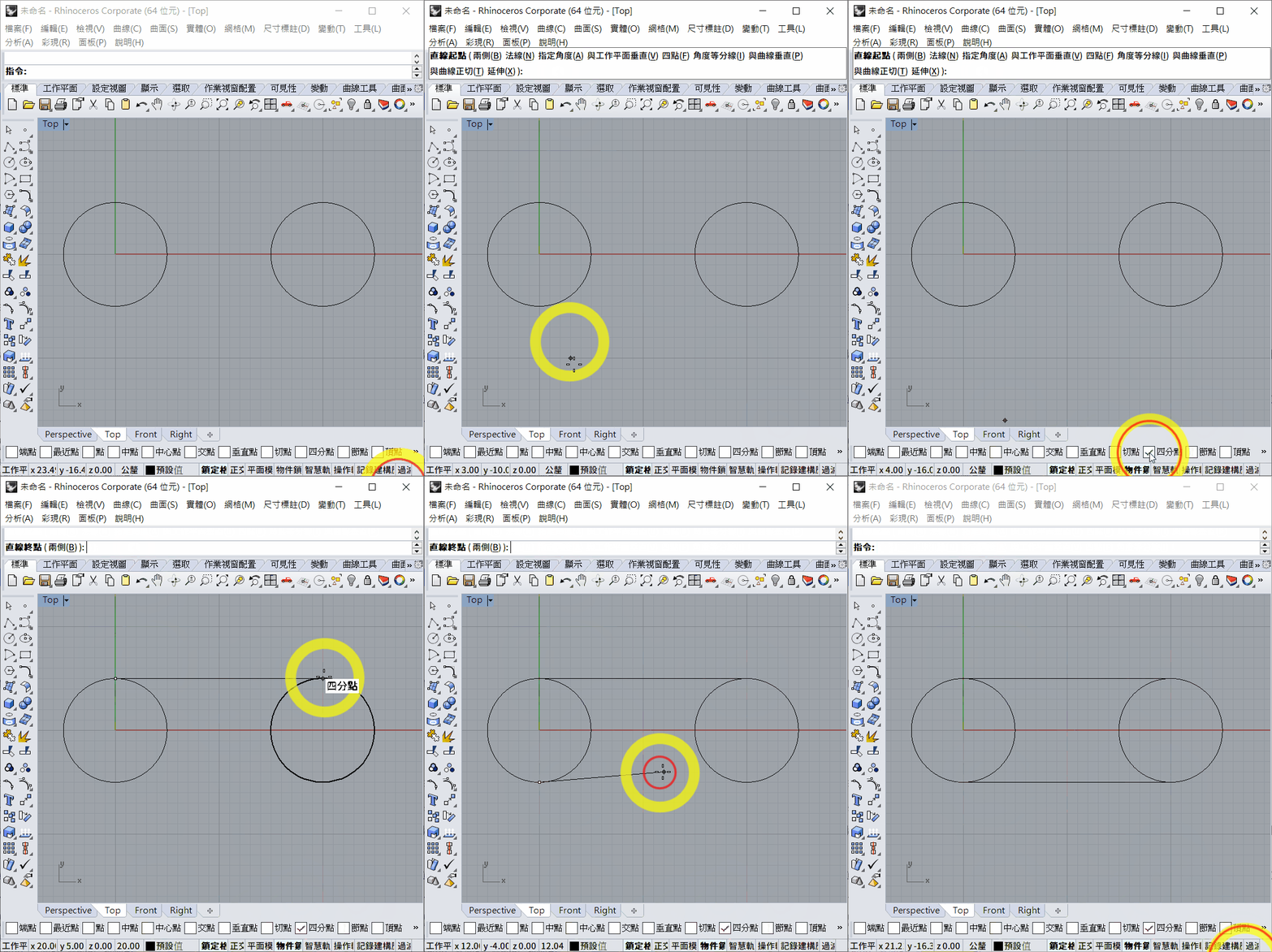
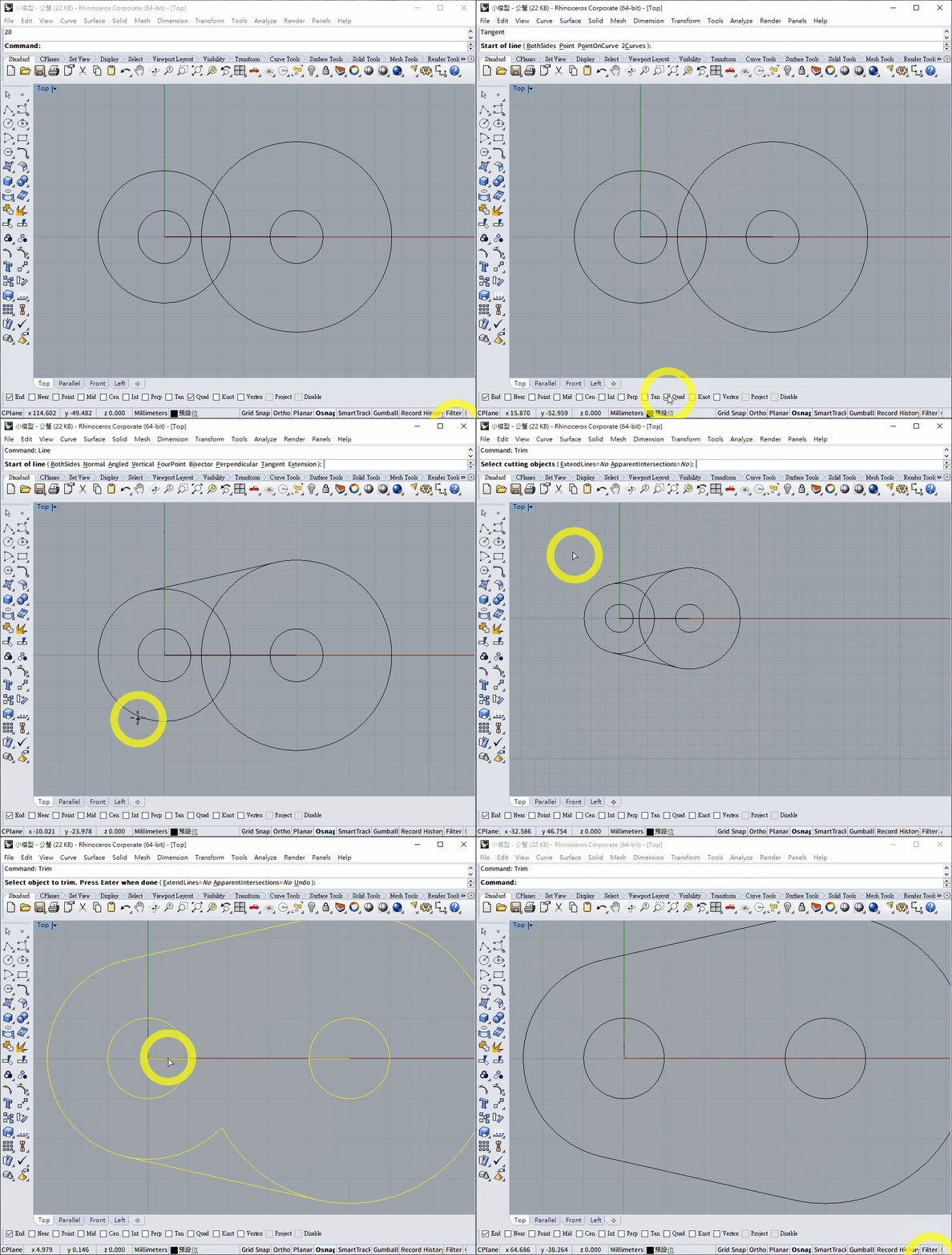
If two identical circles are aligned horizontally or vertically, use the Quad object snap to locate their quadrant points and draw a common tangent.
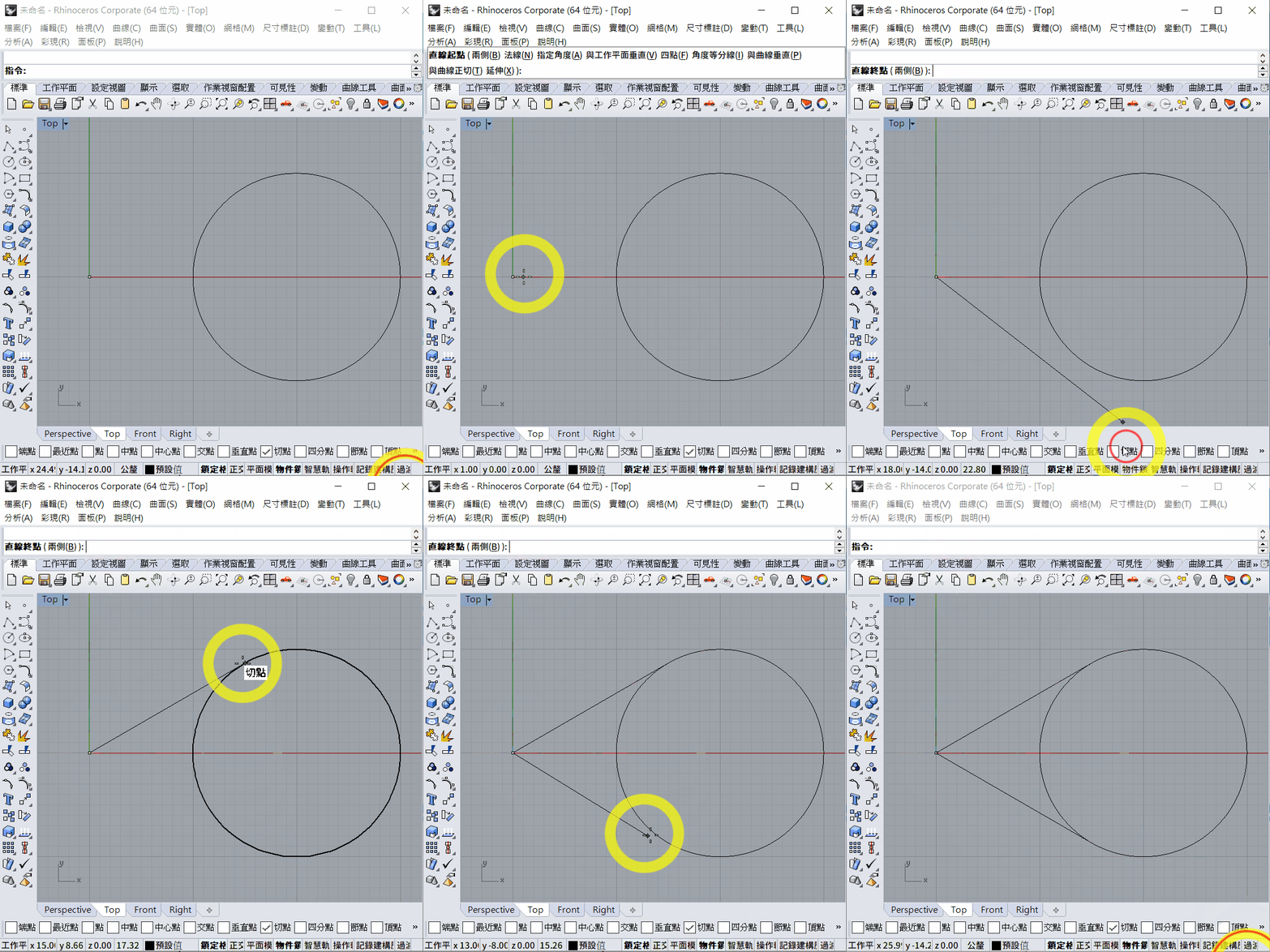
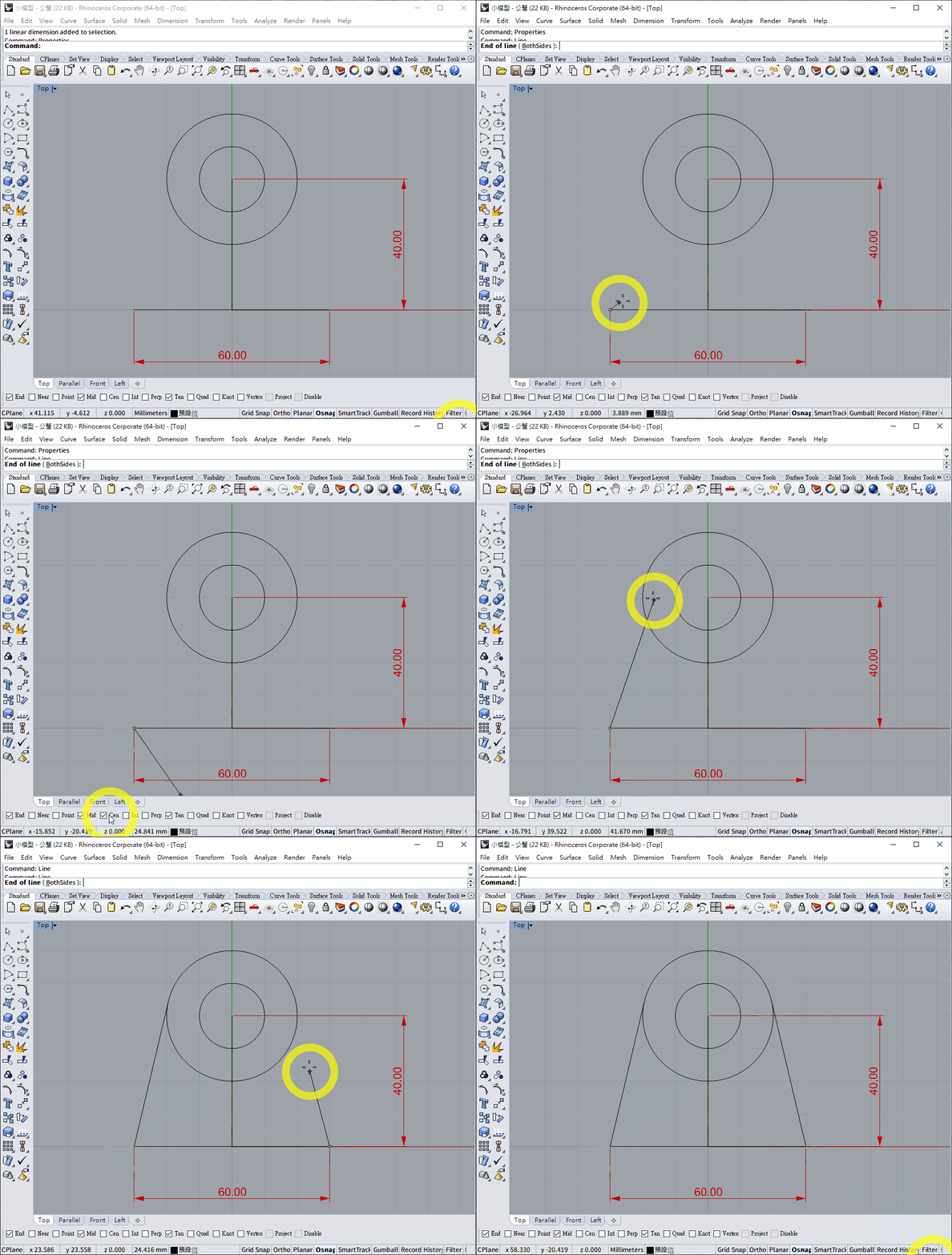
Tangent from a Point to a Circle
- Select the starting point of the tangent line.
- Make sure
Tanis enabled in theOsnaptoolbar.- Disable
Cen; otherwise, the cursor may snap to the centre of the circle.
- Disable
- Move the cursor near the tangent point. The
Tangentindicator should appear and snap to the correct point.
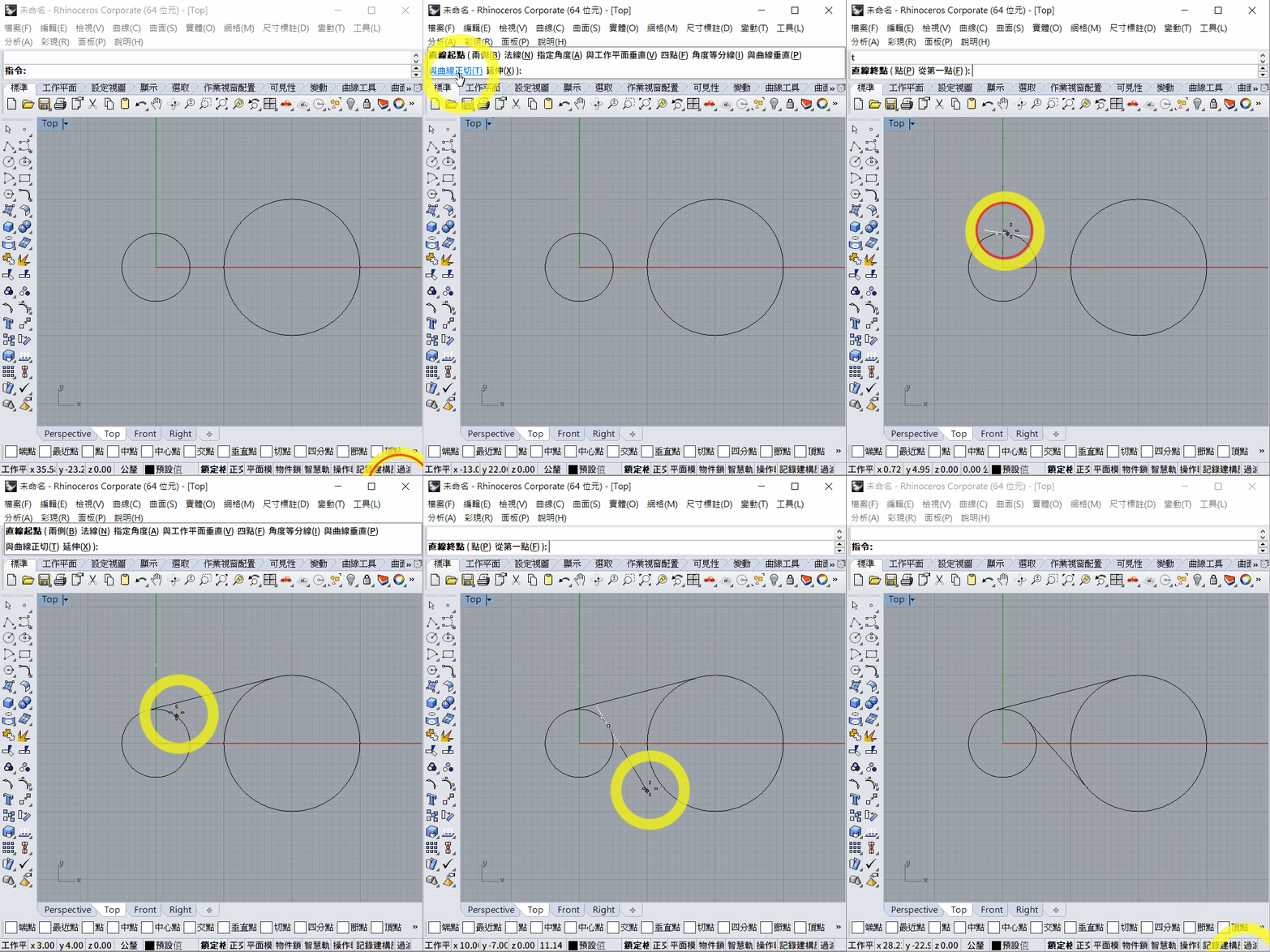
Circle-to-Circle Tangent Line
- Disable
Cenin theOsnaptoolbar; otherwise, the cursor may snap to a circle's centre. - Enter
Lineand pressEnter. - Enter
Tand pressEnter, or selectTangenton the command line. - Move the cursor near the first circle. When the white tangent preview appears, left-click.
- Move the cursor near the second circle. Depending on the cursor position, Rhino offers an internal or external common tangent. Left-click the required one.
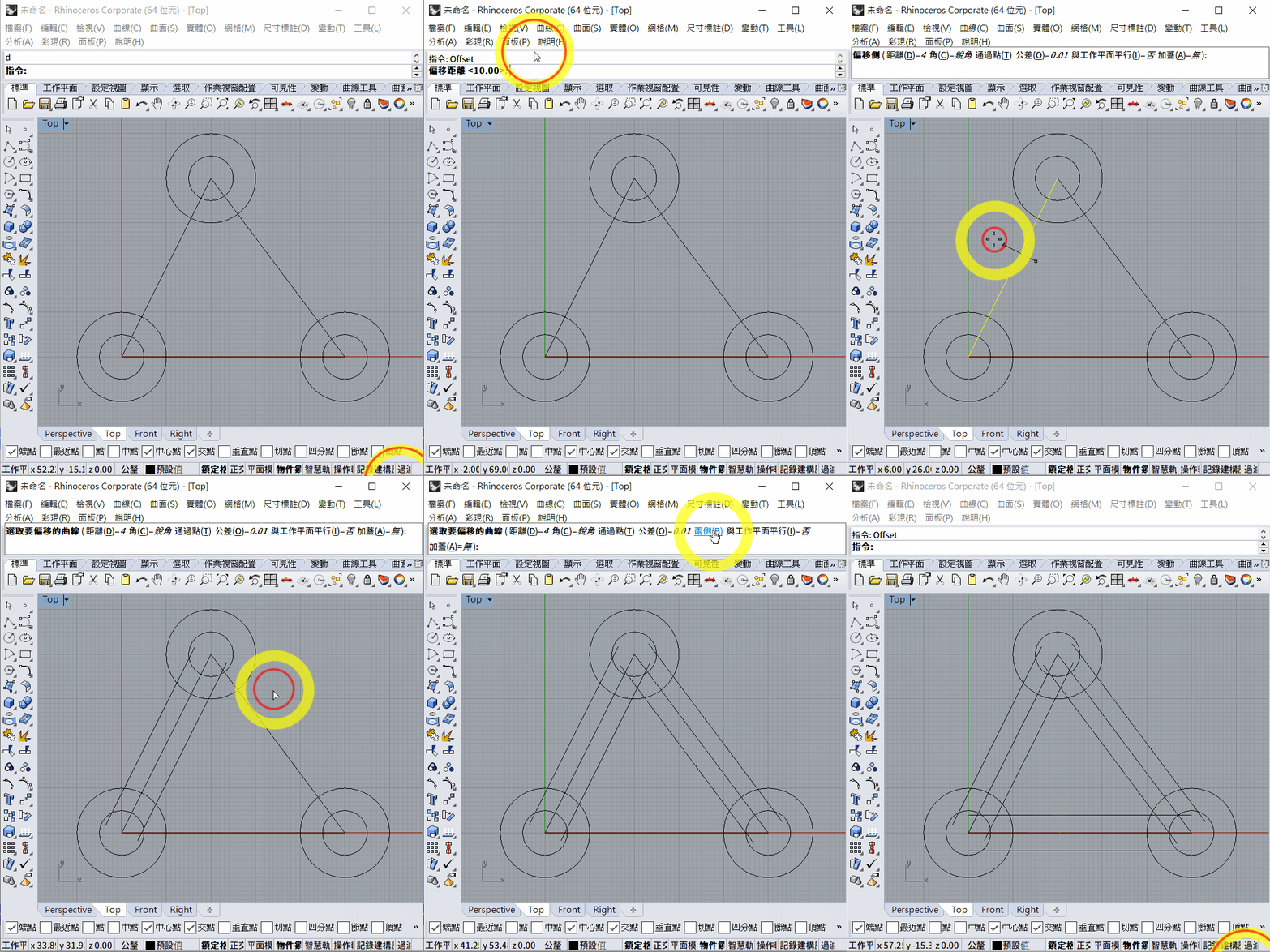
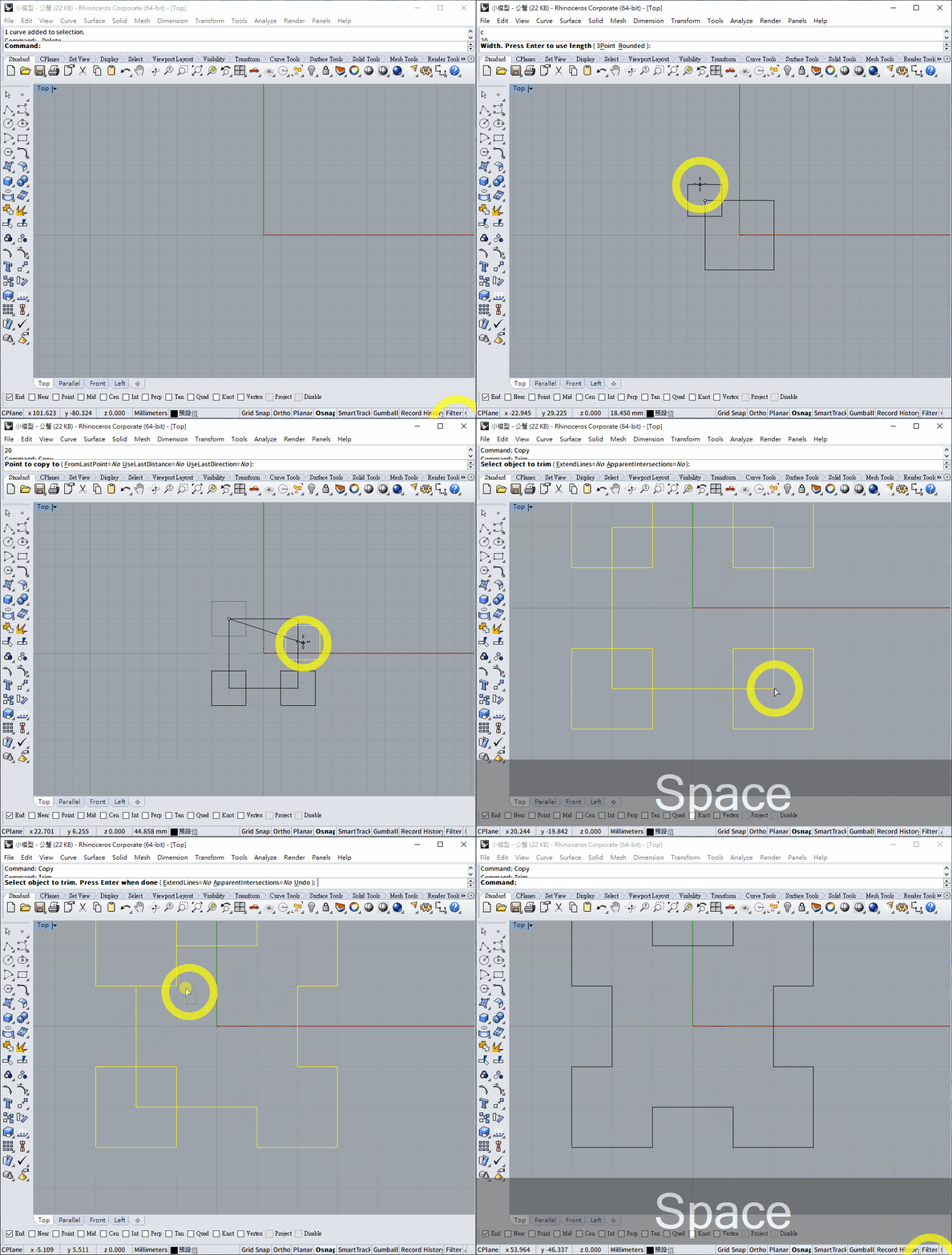
2. Offset
- Enter
Offseton the command line. - Select the object to offset, then press the space bar or
Enter, or right-click to confirm. - Select
Distanceand enter the offset distance. - Left-click on the required side to define the direction and confirm.
Offsetworks with lines, circles, rectangles and any closed shape, including curves combined withJoin.- It is also useful for positioning geometry at a known distance.
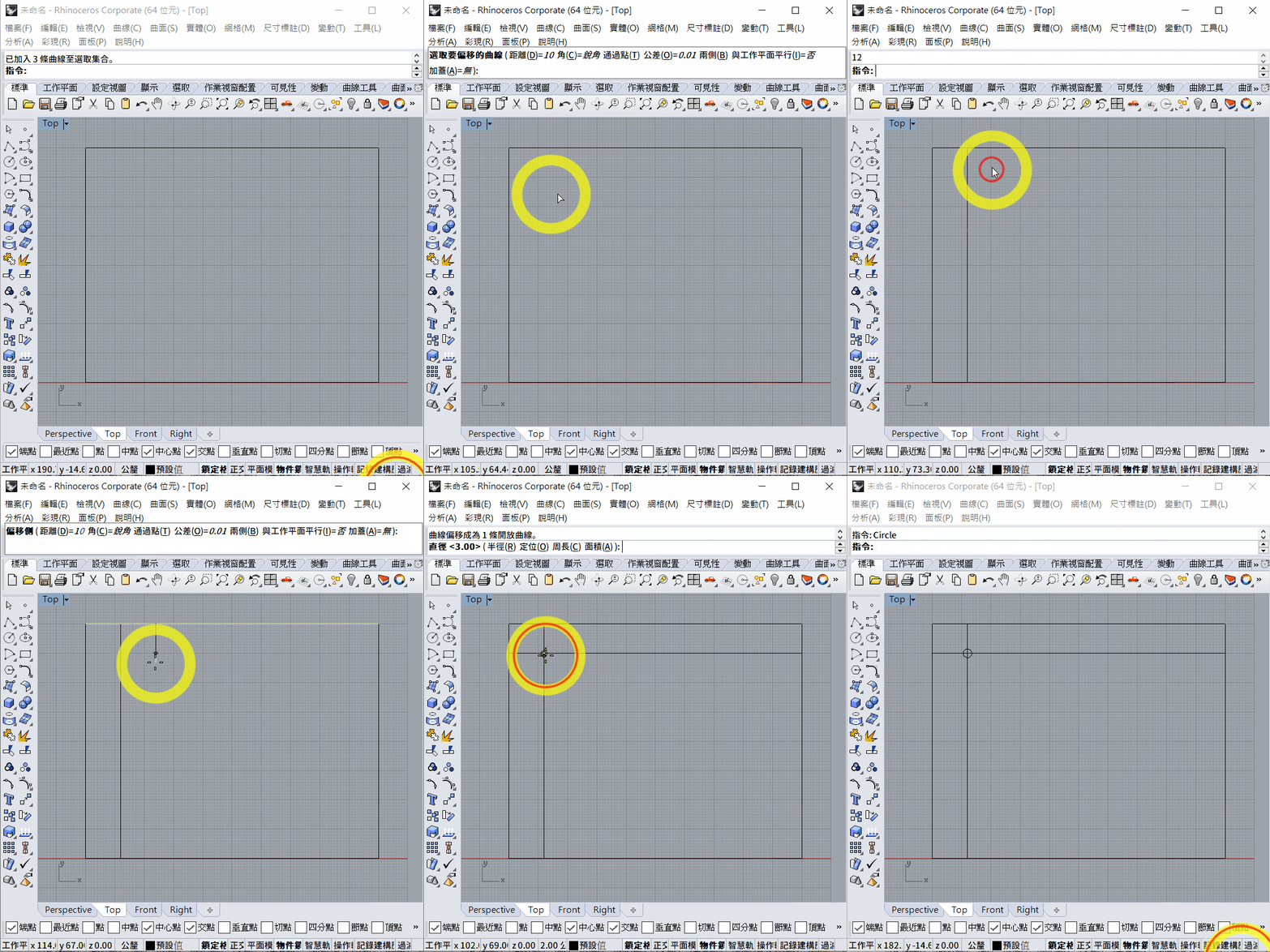
Offset also has a BothSides option, which creates offsets on both sides simultaneously.
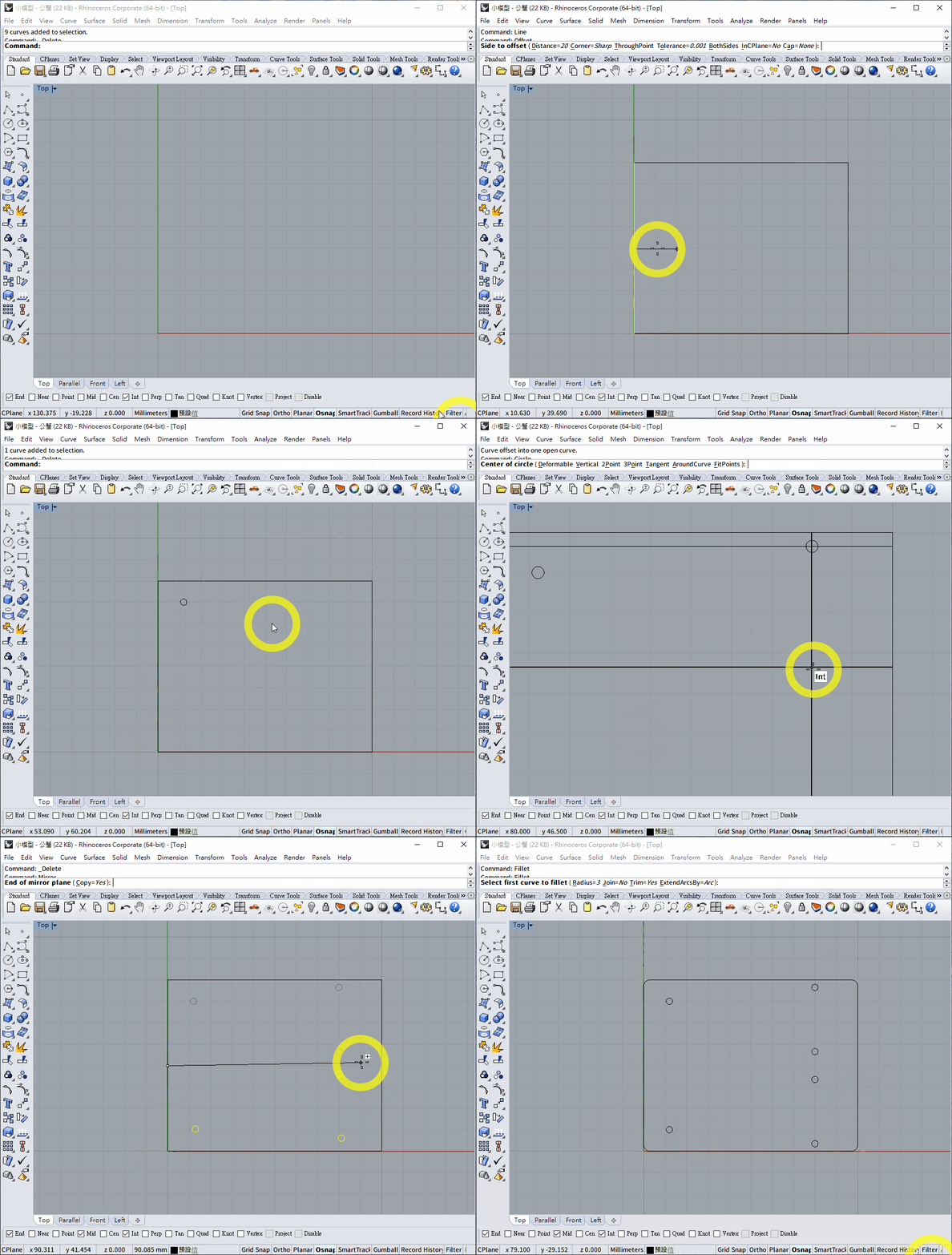
3. Mirror
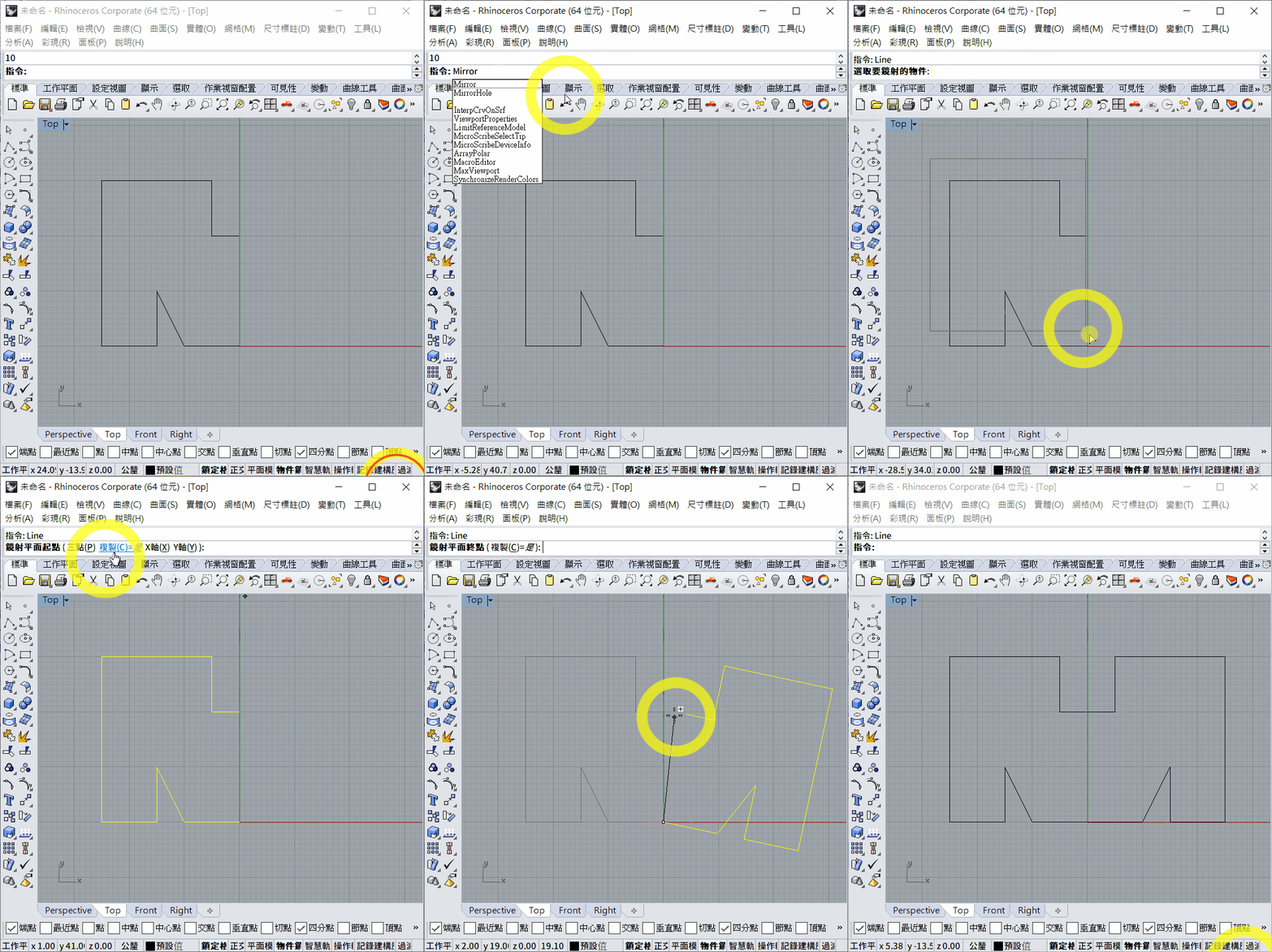
- Enter
Mirror. - Select the objects to mirror, then press the space bar or
Enter, or right-click to confirm. - Select the start and endpoint of the mirror axis.
- To keep the original objects, set
Copy=Yesbefore defining the mirror axis.
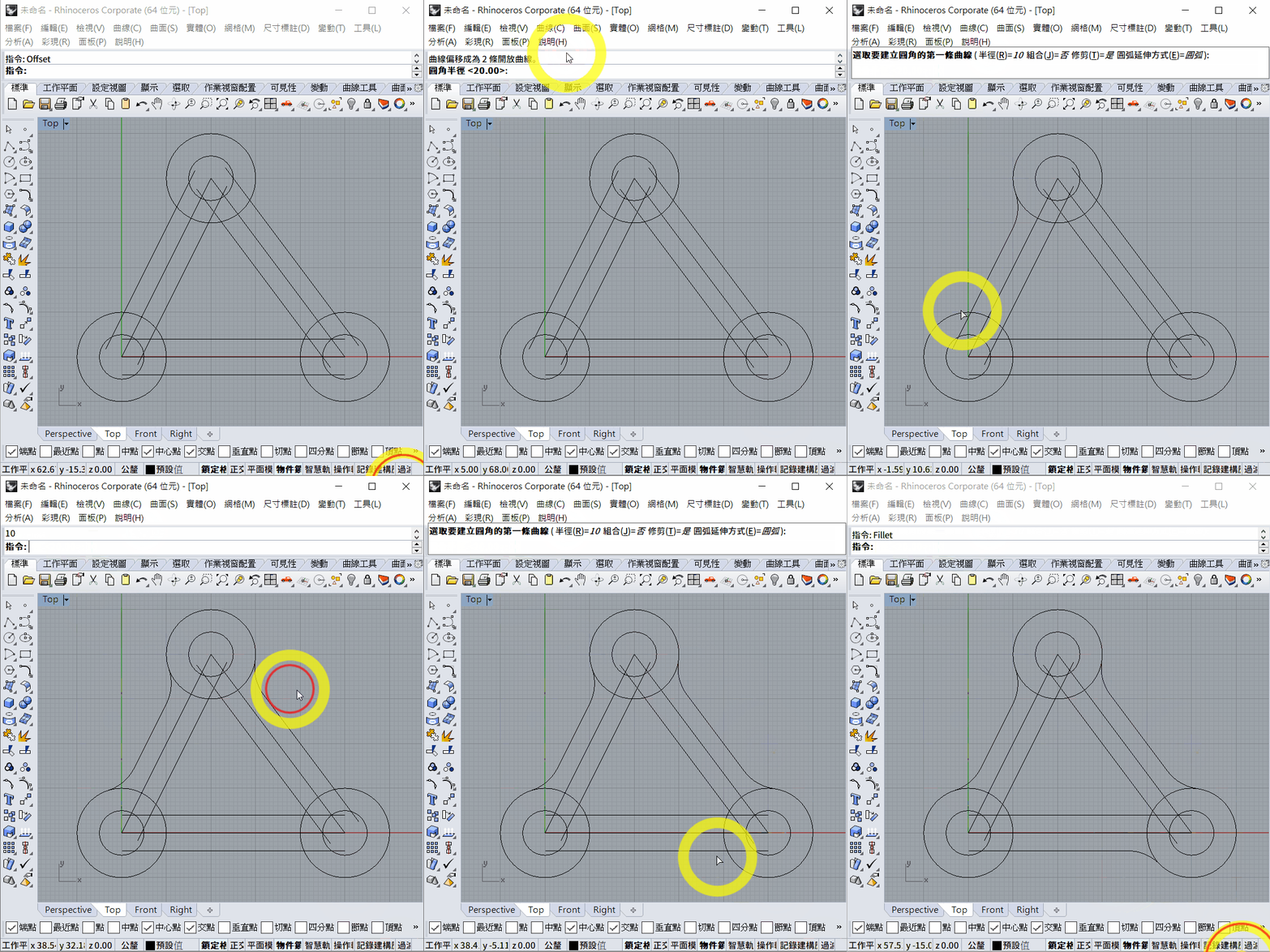
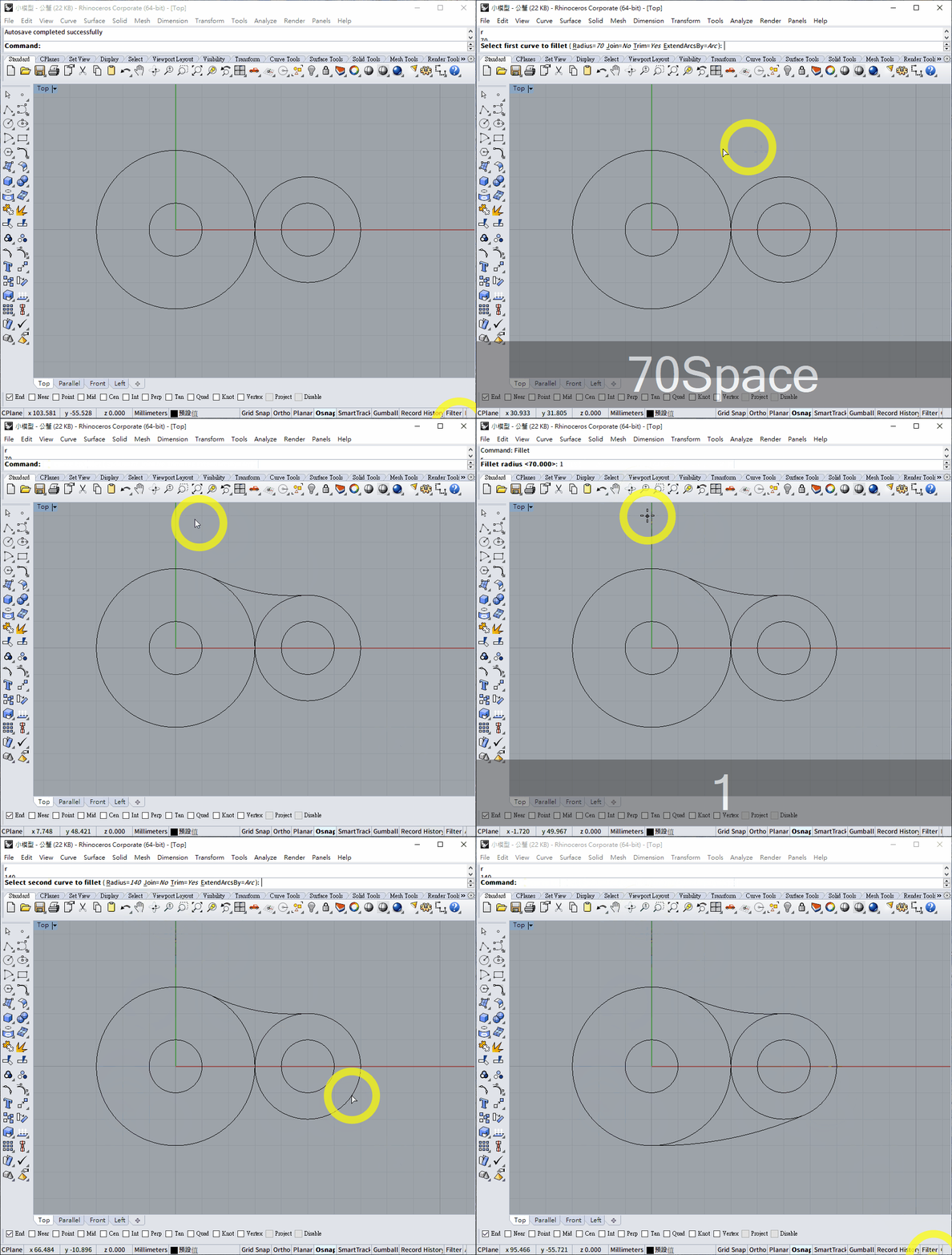
4. Fillet
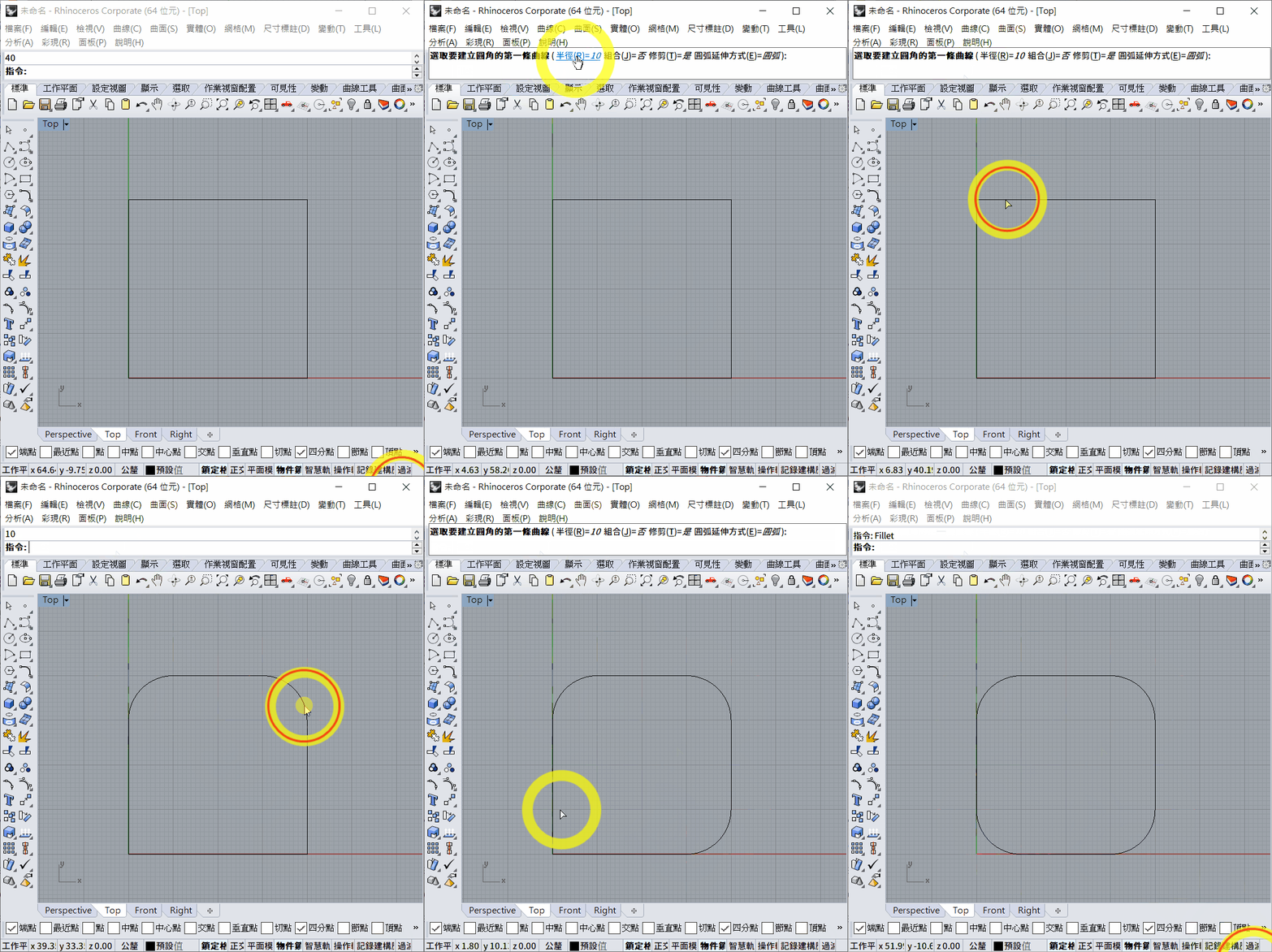
To create a fillet between two objects:
- Enter
Filleton the command line. - Select
Radius, or enterRand pressEnter. - Enter the required fillet radius and press
Enter. - Select the first and second objects.
Fillet also works between two circles:
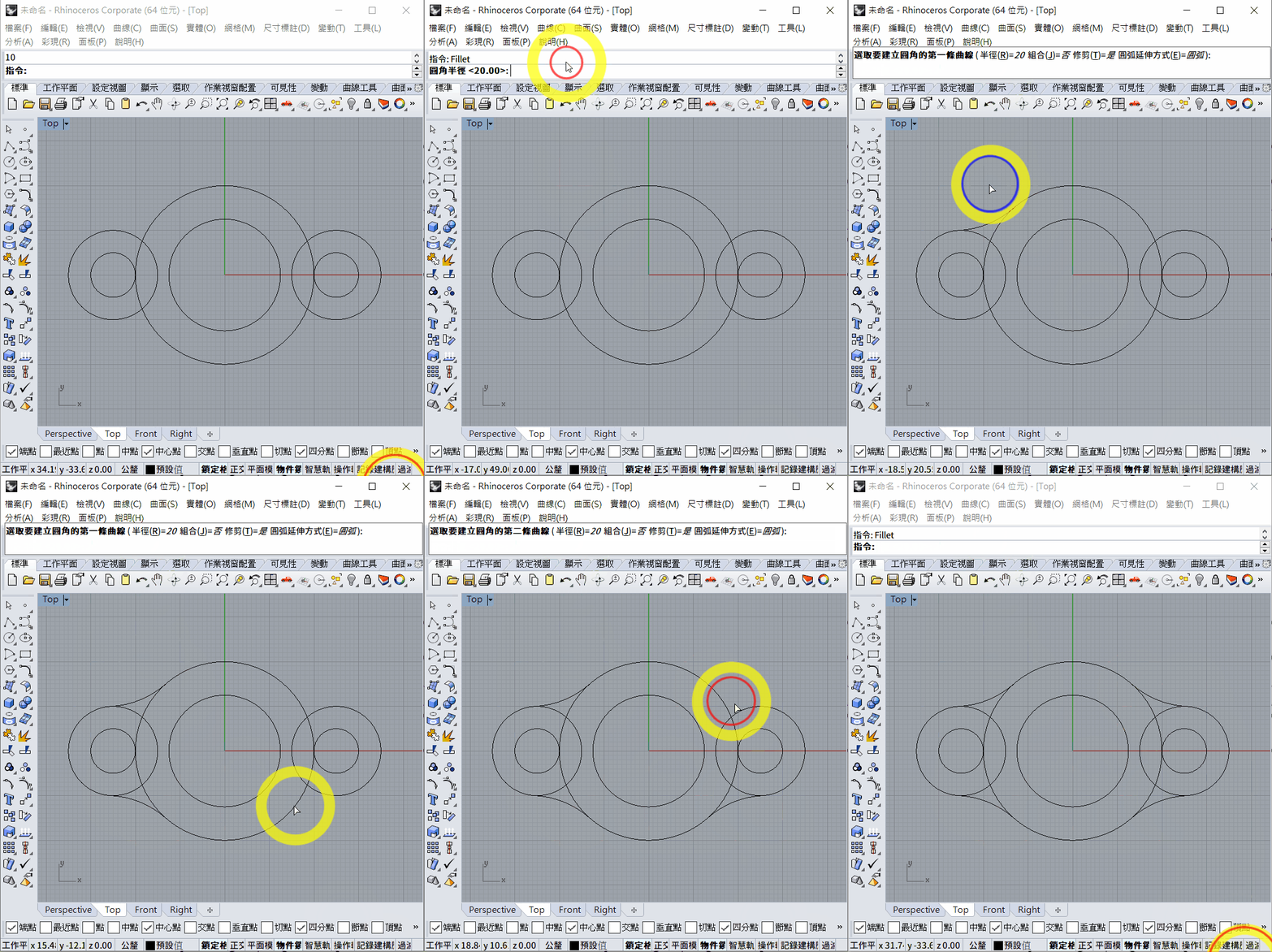
It also works between a circle and a line:
Exercises
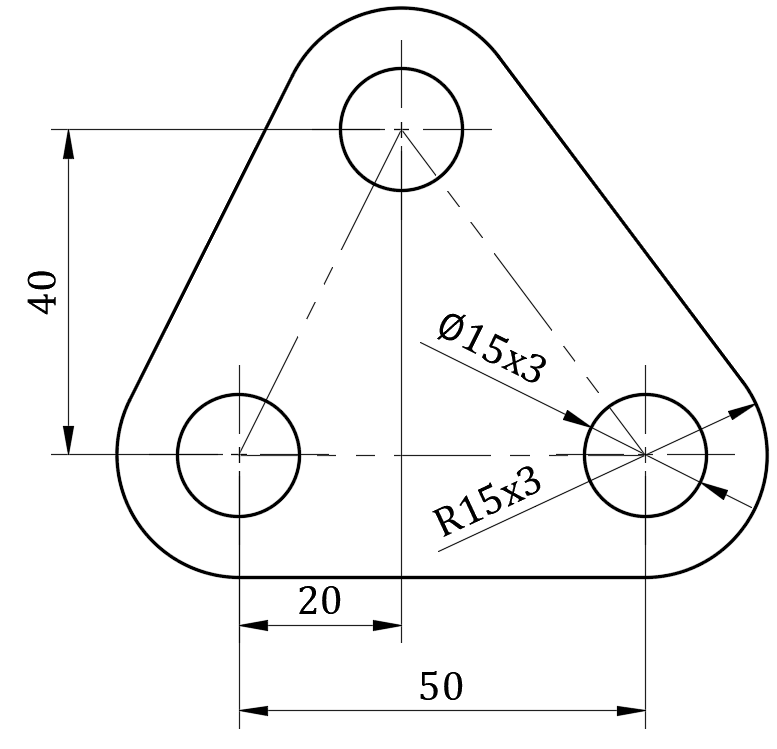
Exercises 1–3:
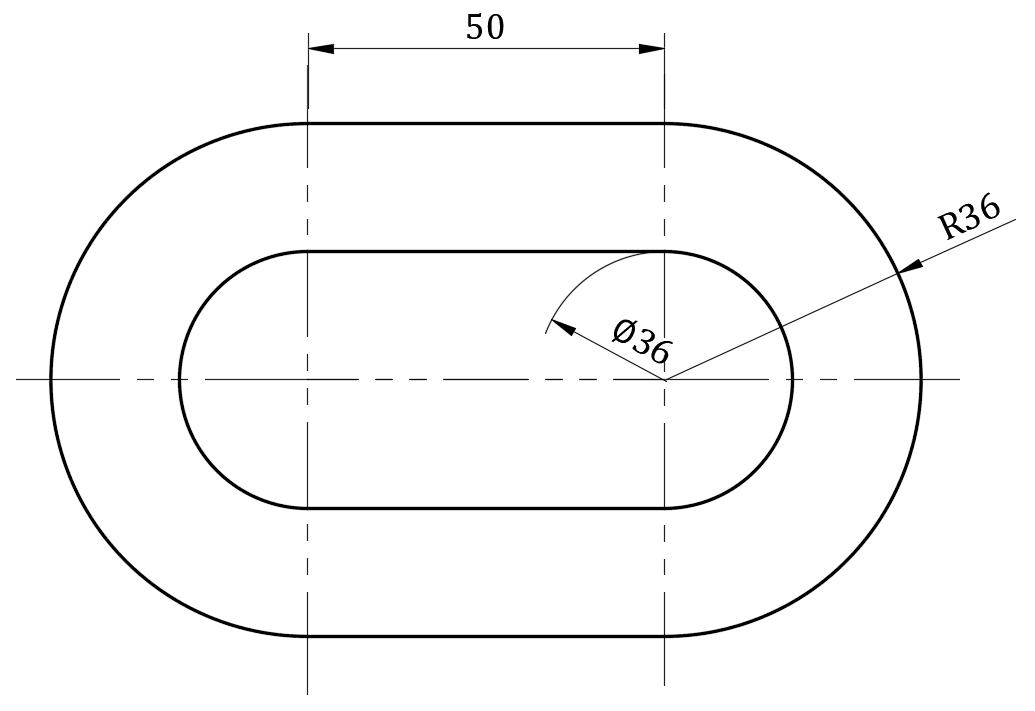
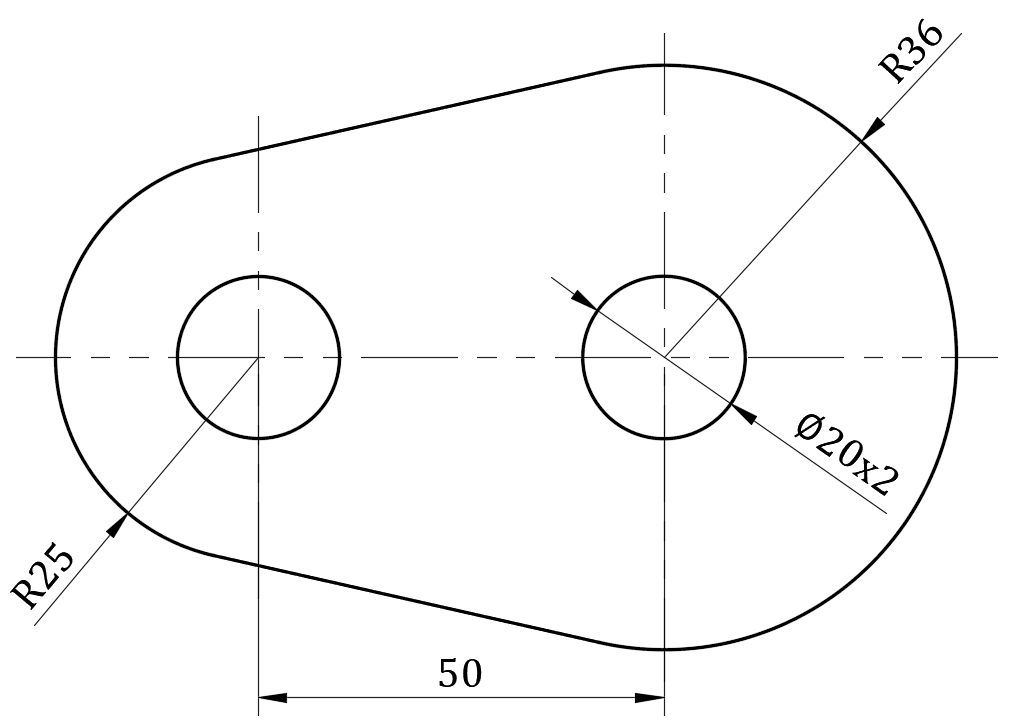
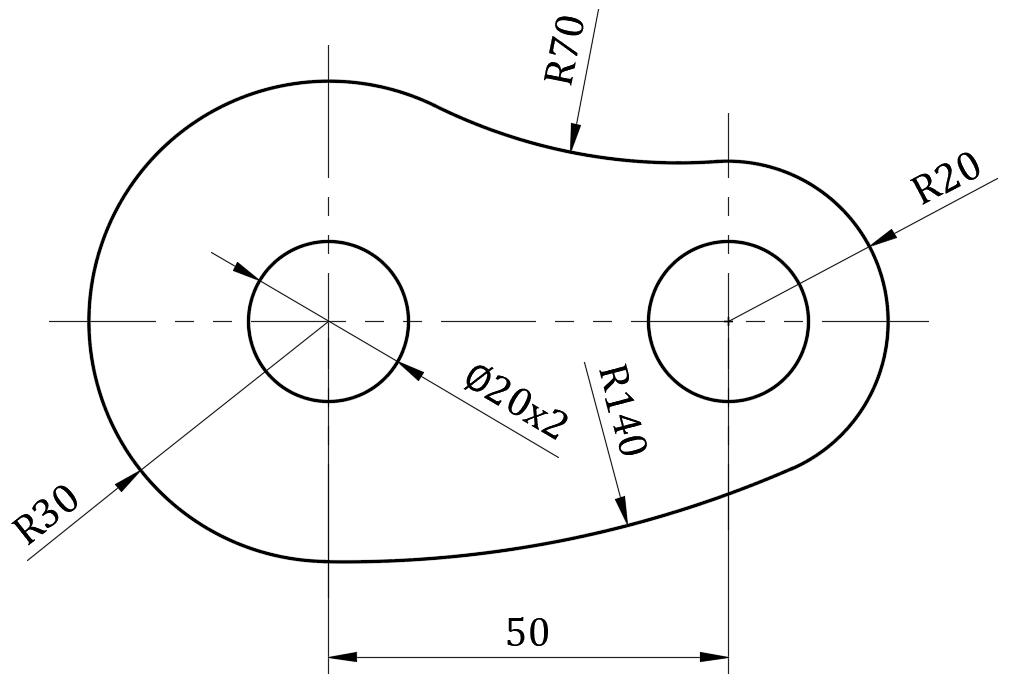
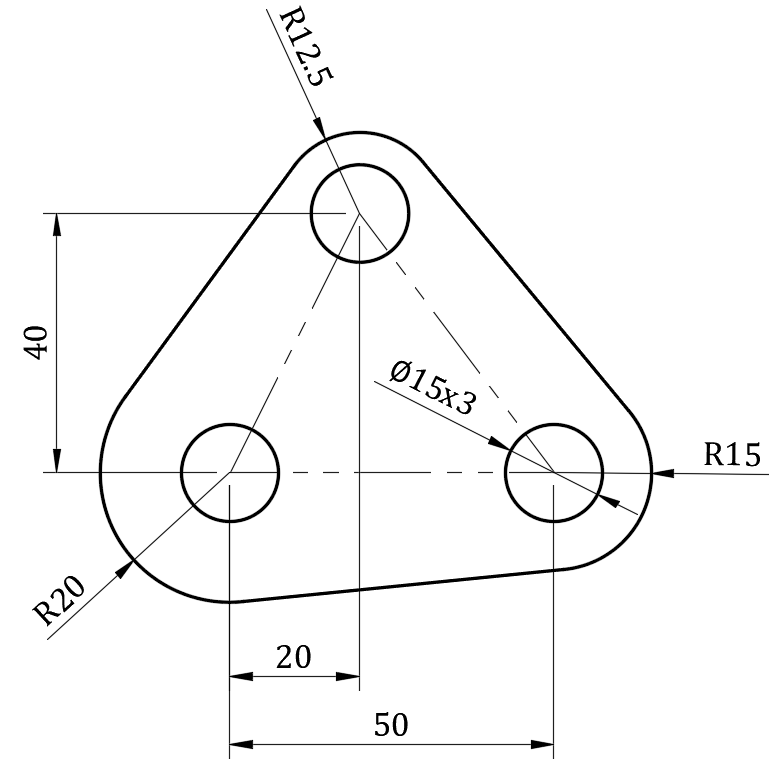
Exercises 4–7:
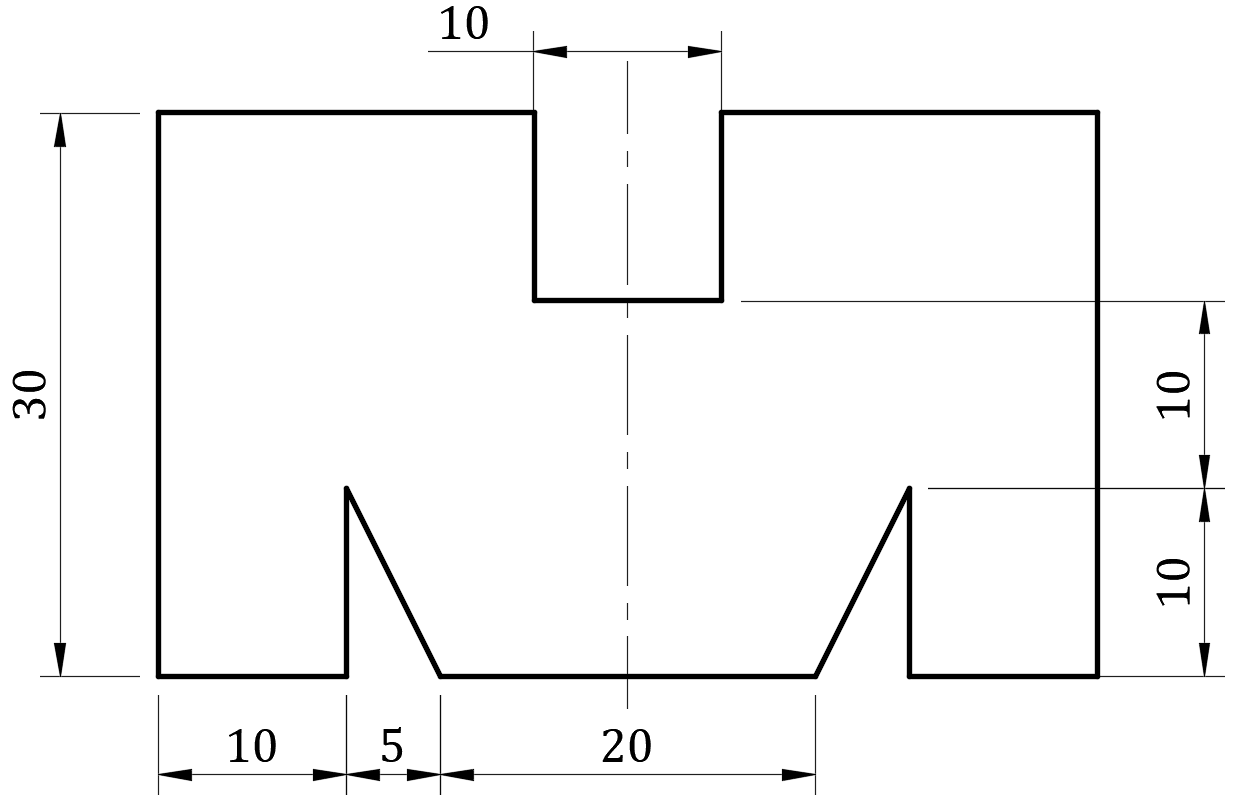
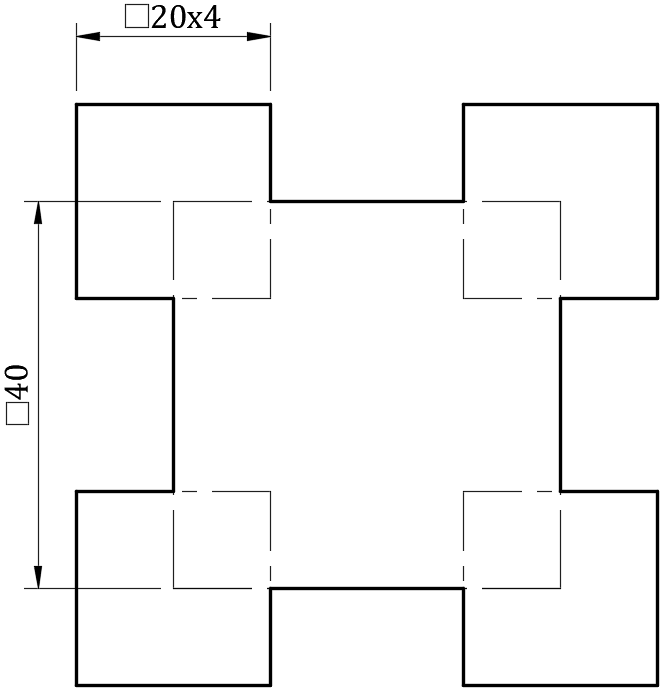
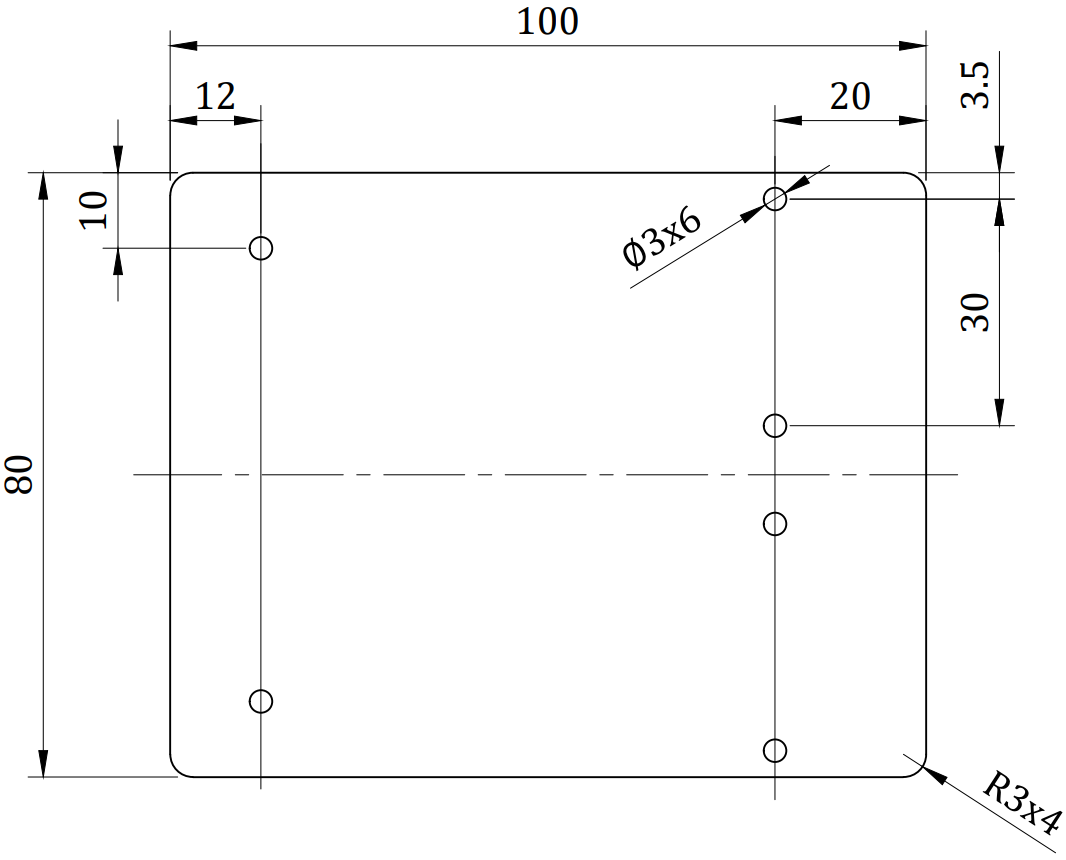
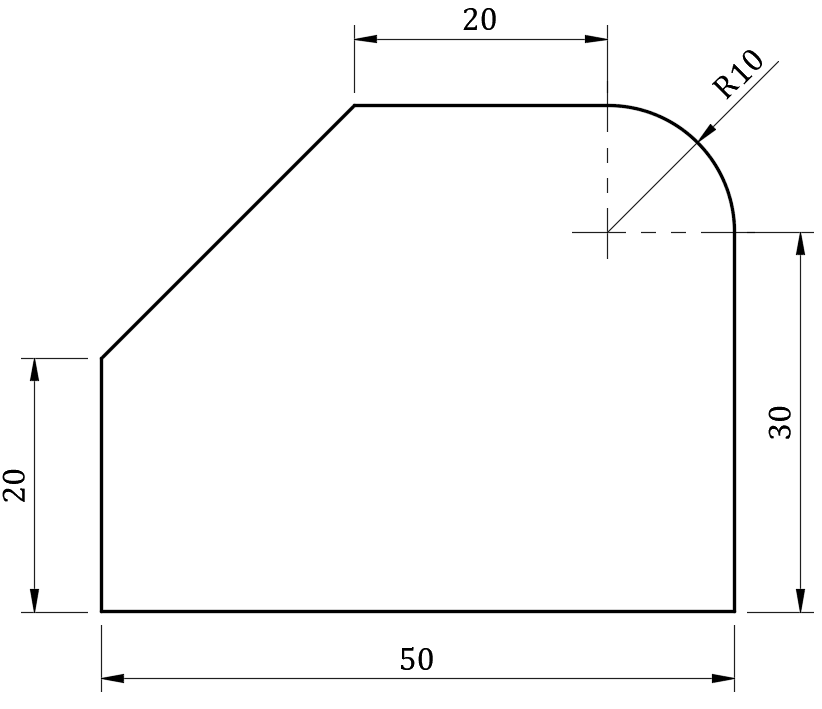
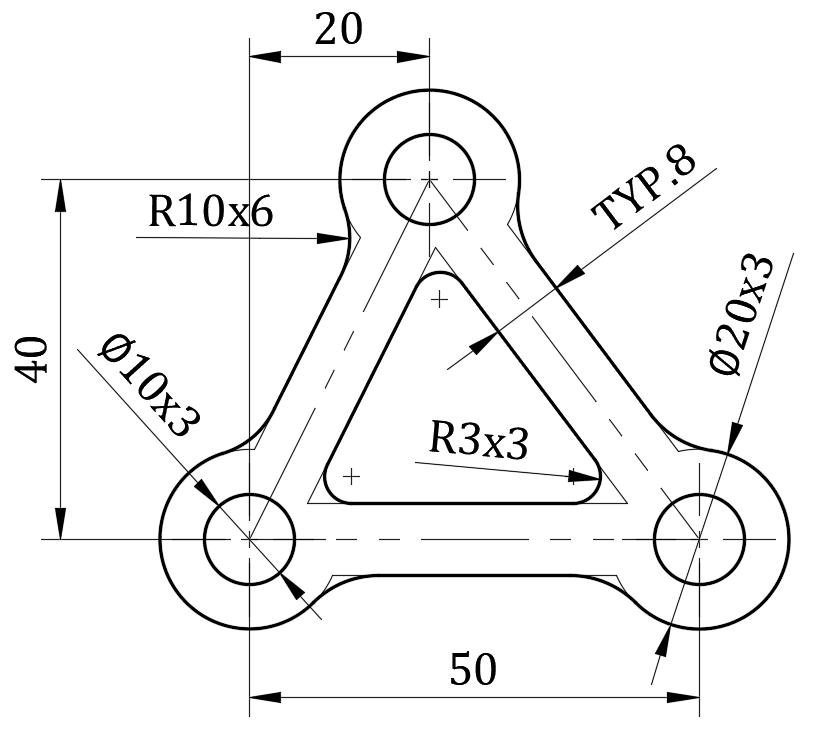
Exercises 8–11:
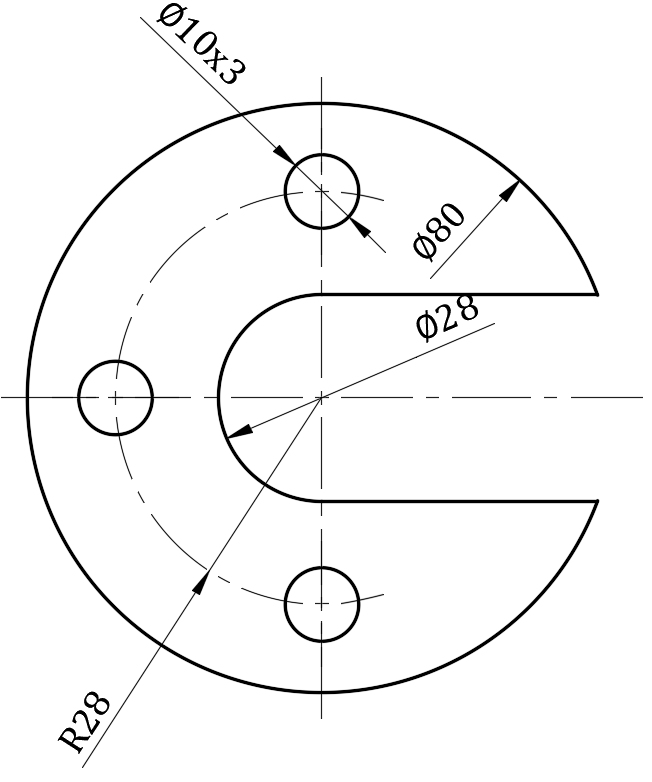
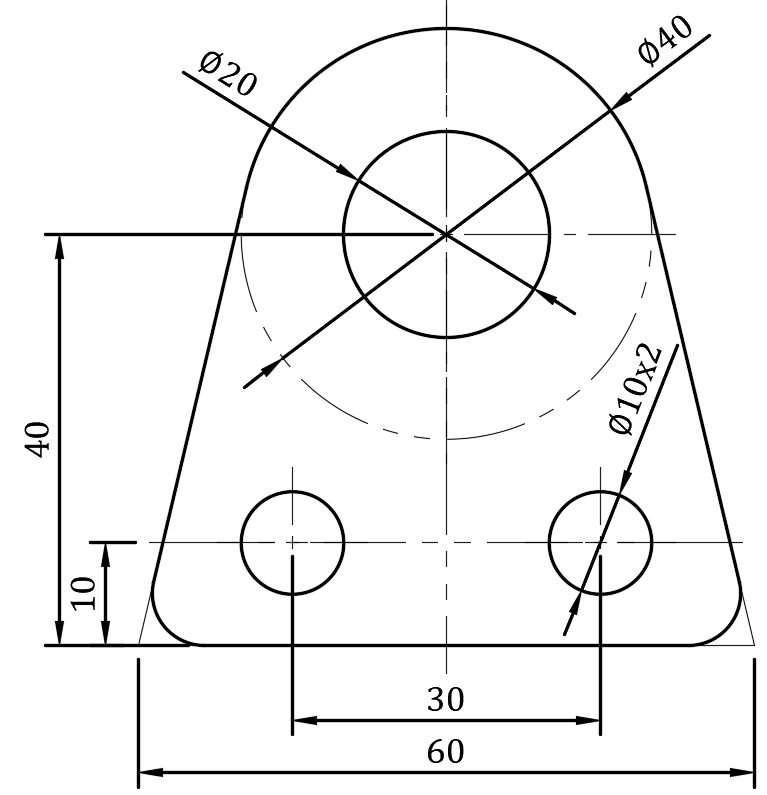
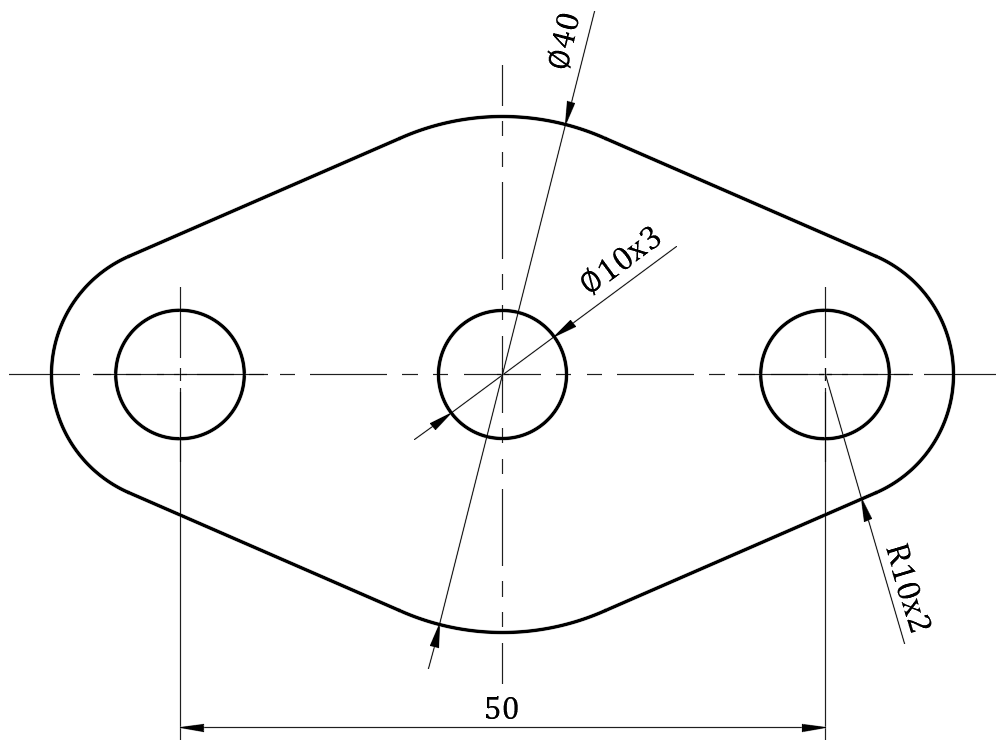
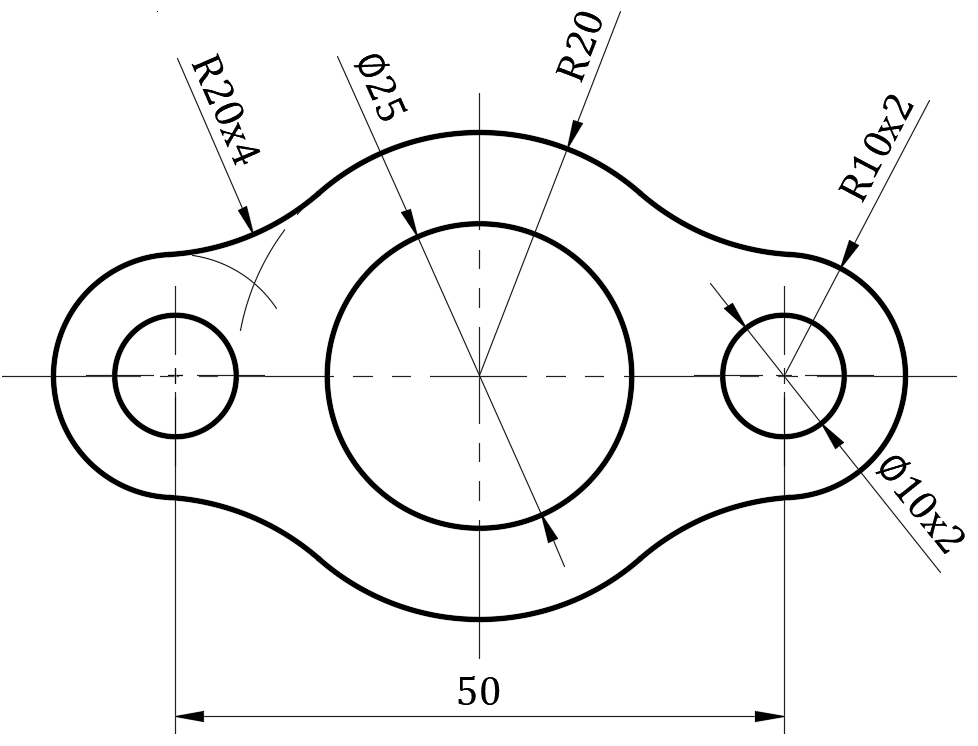
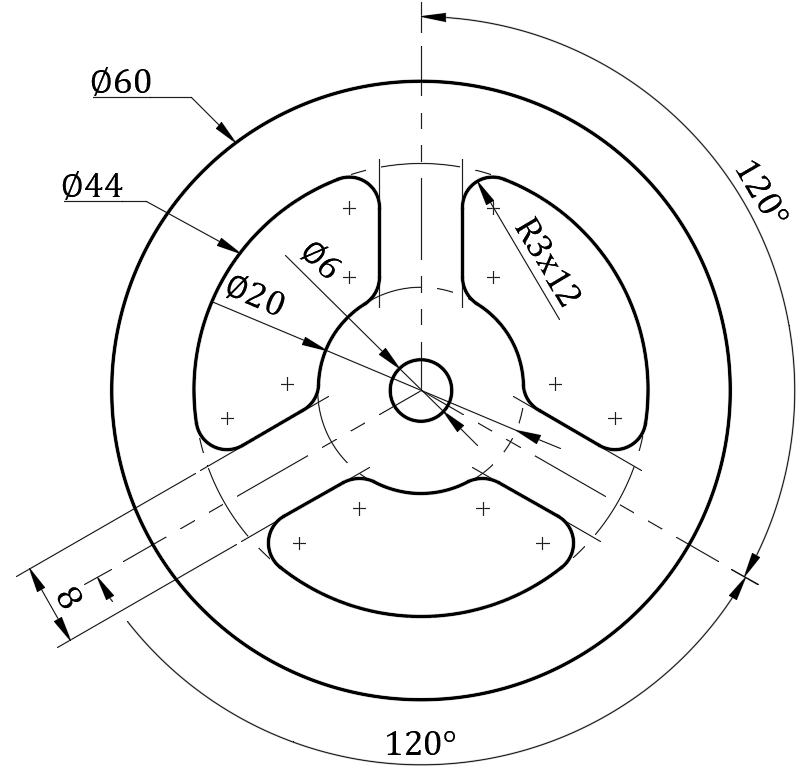
Exercises 12–15:
Answers
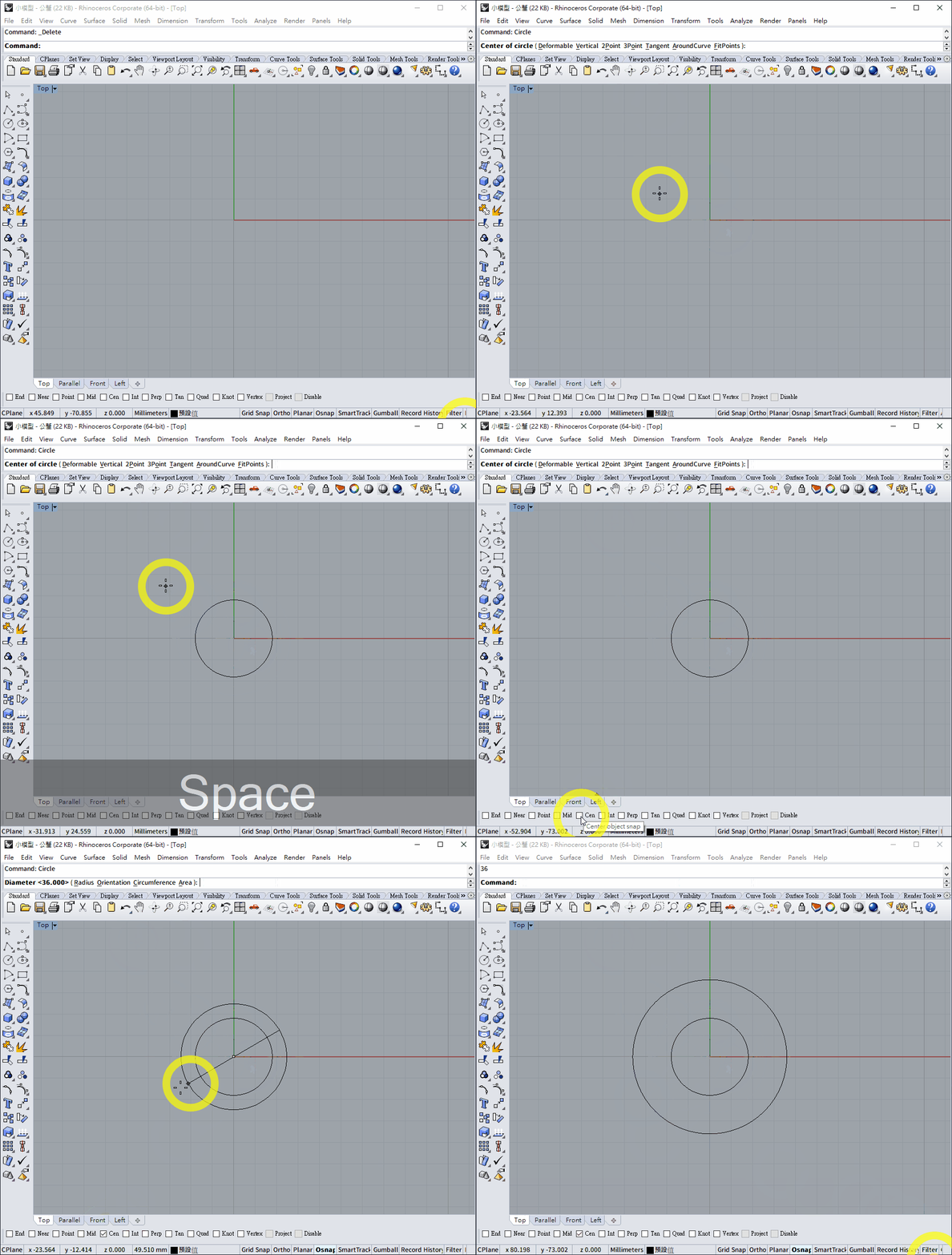
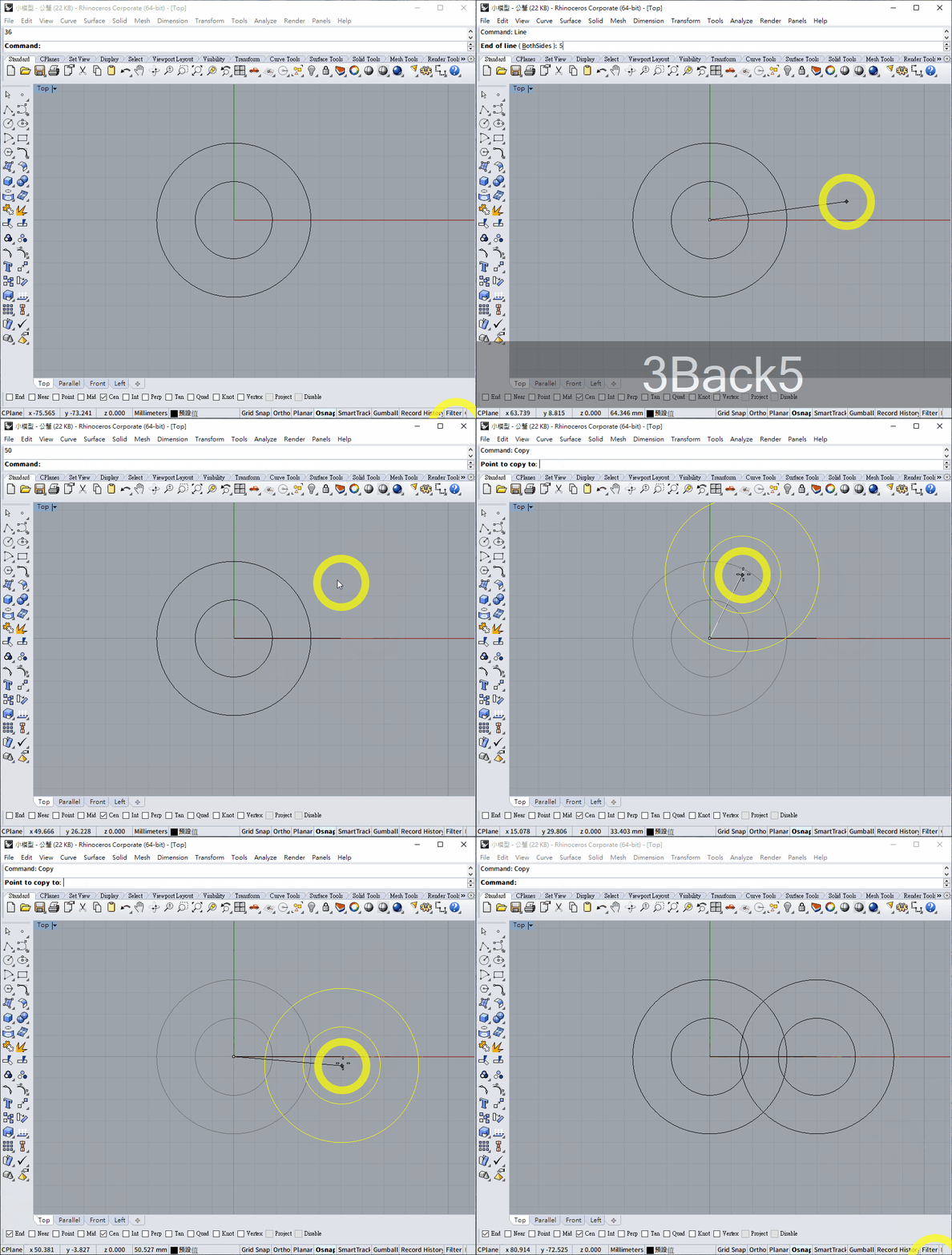
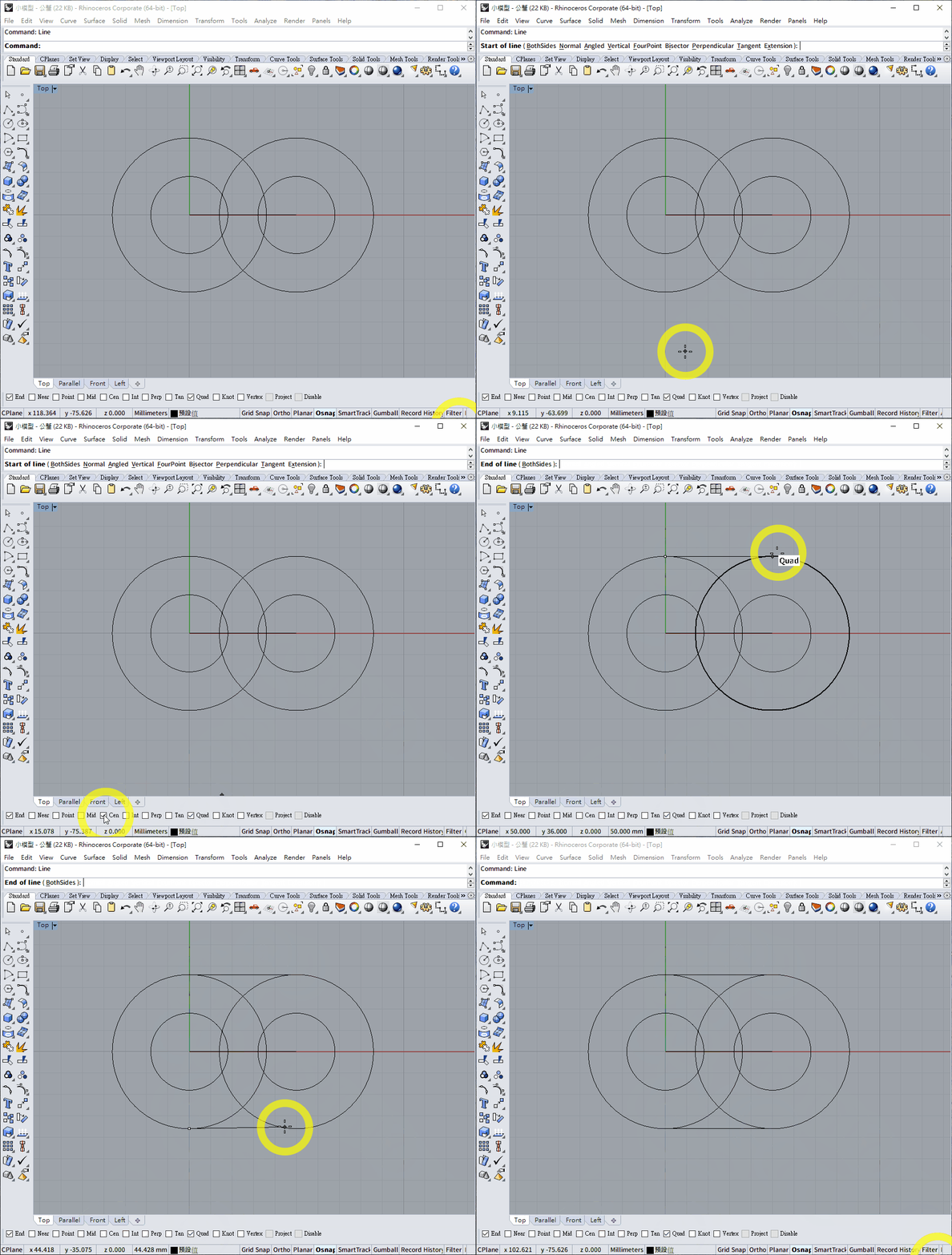
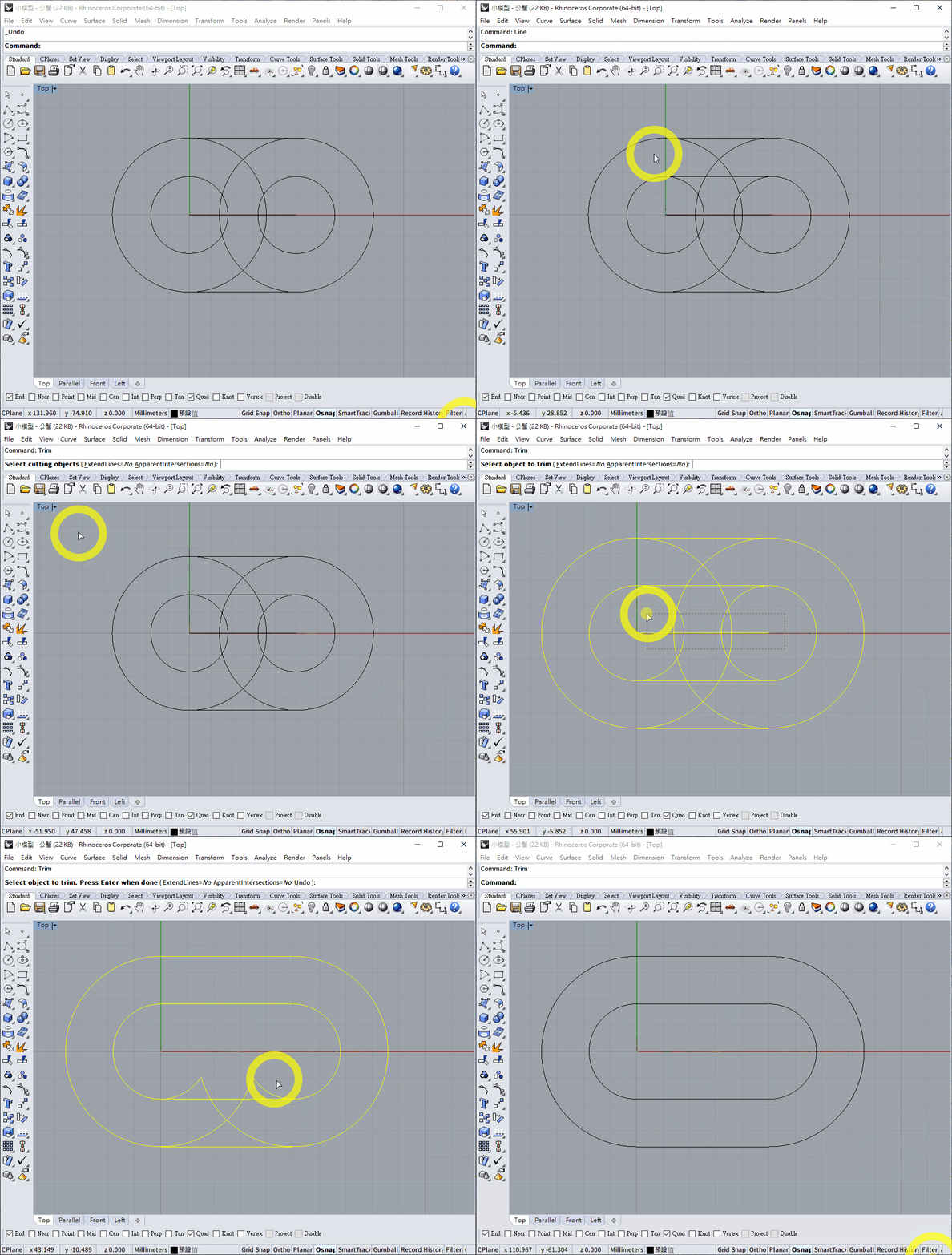
- Complete this exercise yourself.
- Complete this exercise yourself.
- Complete this exercise yourself.
Translation notice: This English page was generated automatically by AI and has not yet been reviewed by a human. It will be checked and revised page by page when time permits.