Basic Fusion 360 Settings
This chapter introduces the basic settings and workflow of Fusion 360.
Step 1: Saving and Opening Files
- Open the nine-square icon on the left to see all your projects. A project keeps the many parts of a design, such as a sumo robot, organized in one place.
- Click
New Projectand name itfirst projectorXXX's first project.
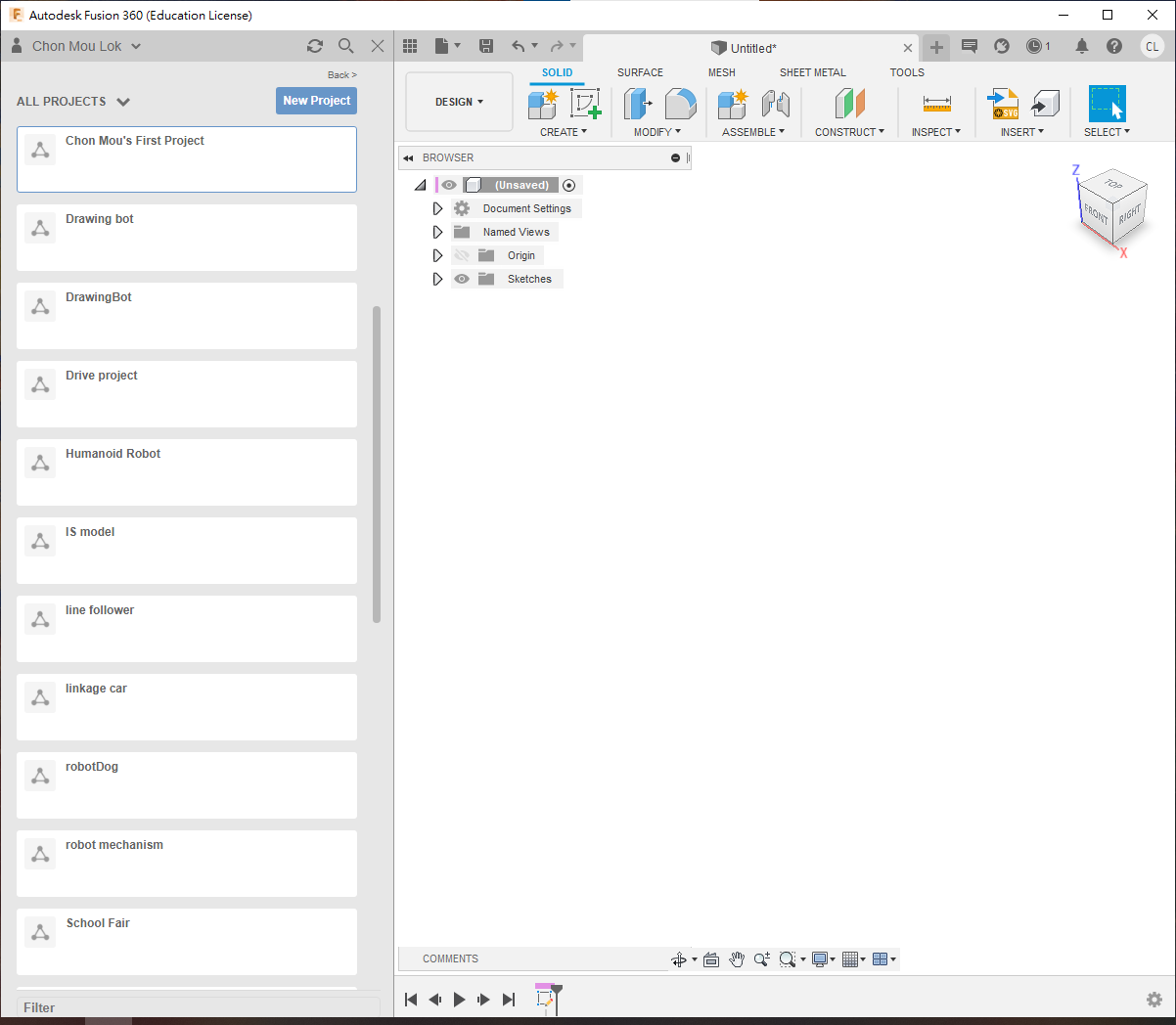
- Create folders inside the project to organize CAD files for screws, nuts, motors, gears, and other parts.
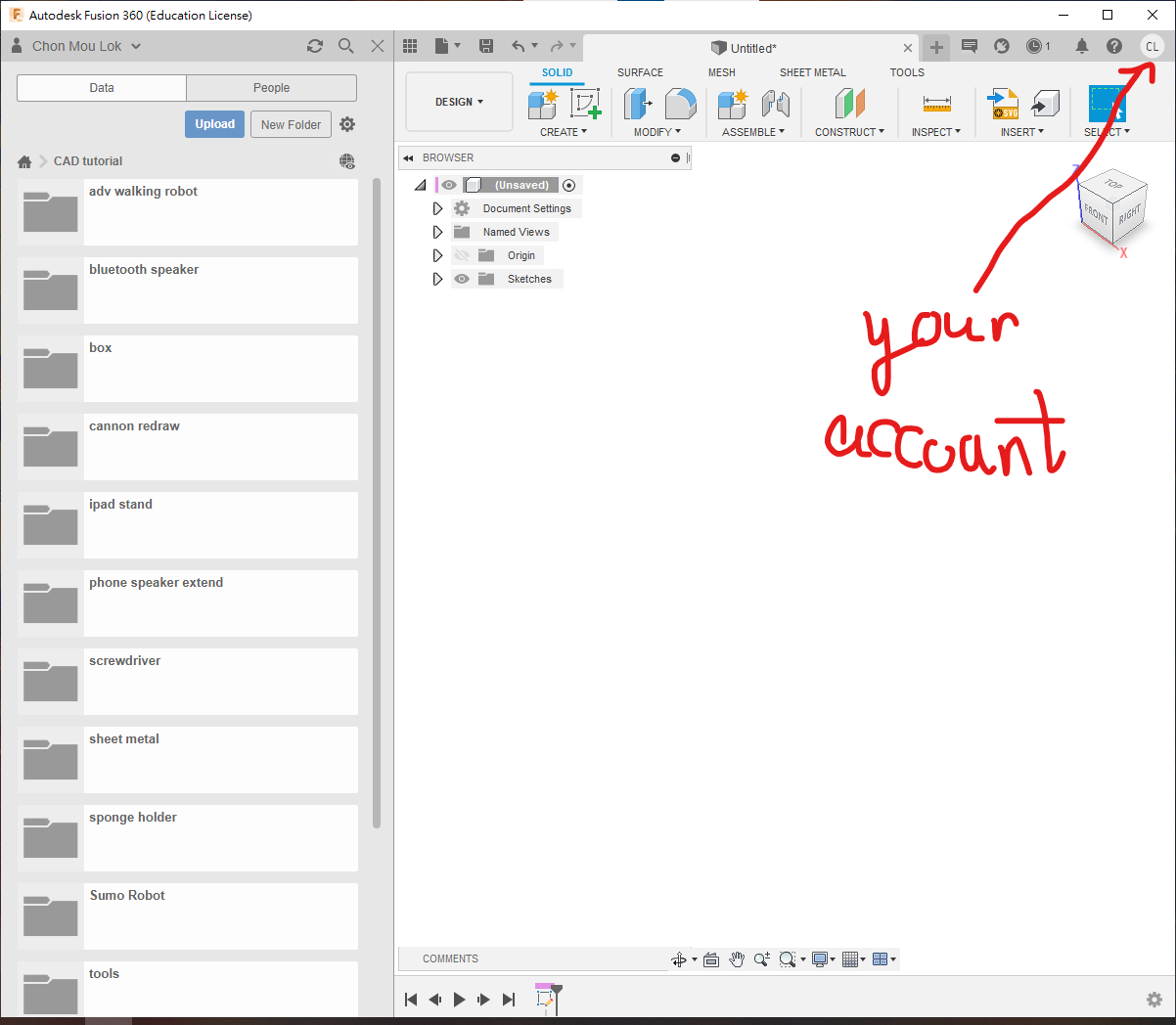
- Fusion 360 files are stored under your account. A standalone design can be downloaded as
*.f3d; an assembly containing referenced parts is downloaded as*.f3z.
💡TIP
Fusion 360 works through an online account. Always confirm that you are signed in with your own account.
Step 2: Configure the Workspace
⚠️WARNING
Use the English interface. Otherwise, later command searches must be entered in Chinese.
💡TIP
To switch languages, click your name in the upper-right corner, choose Preferences, and change the first option.
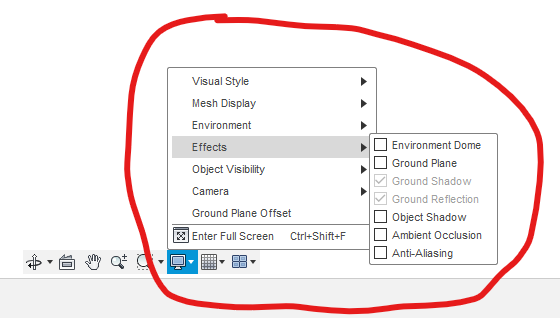
- Click the monitor-shaped icon near the bottom of the drawing workspace.
- Open
Effectsand turn off all effects to improve performance. On a powerful computer, you may enable selected effects for better visuals.
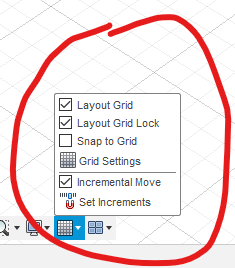
- Use the adjacent grid icon to show or hide the ground grid.
⚠️WARNING
Turn off Snap to Grid.
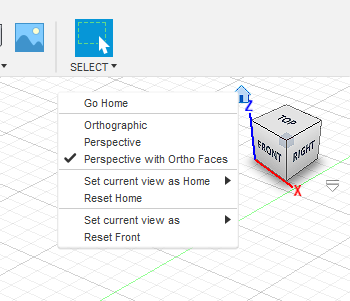
- Right-click the Home icon in the upper-right corner.
- Choose a camera mode.
Perspective with Ortho Facesprovides perspective in normal views and orthographic projection in front, top, and side views.
Step 3: Understand the Interface
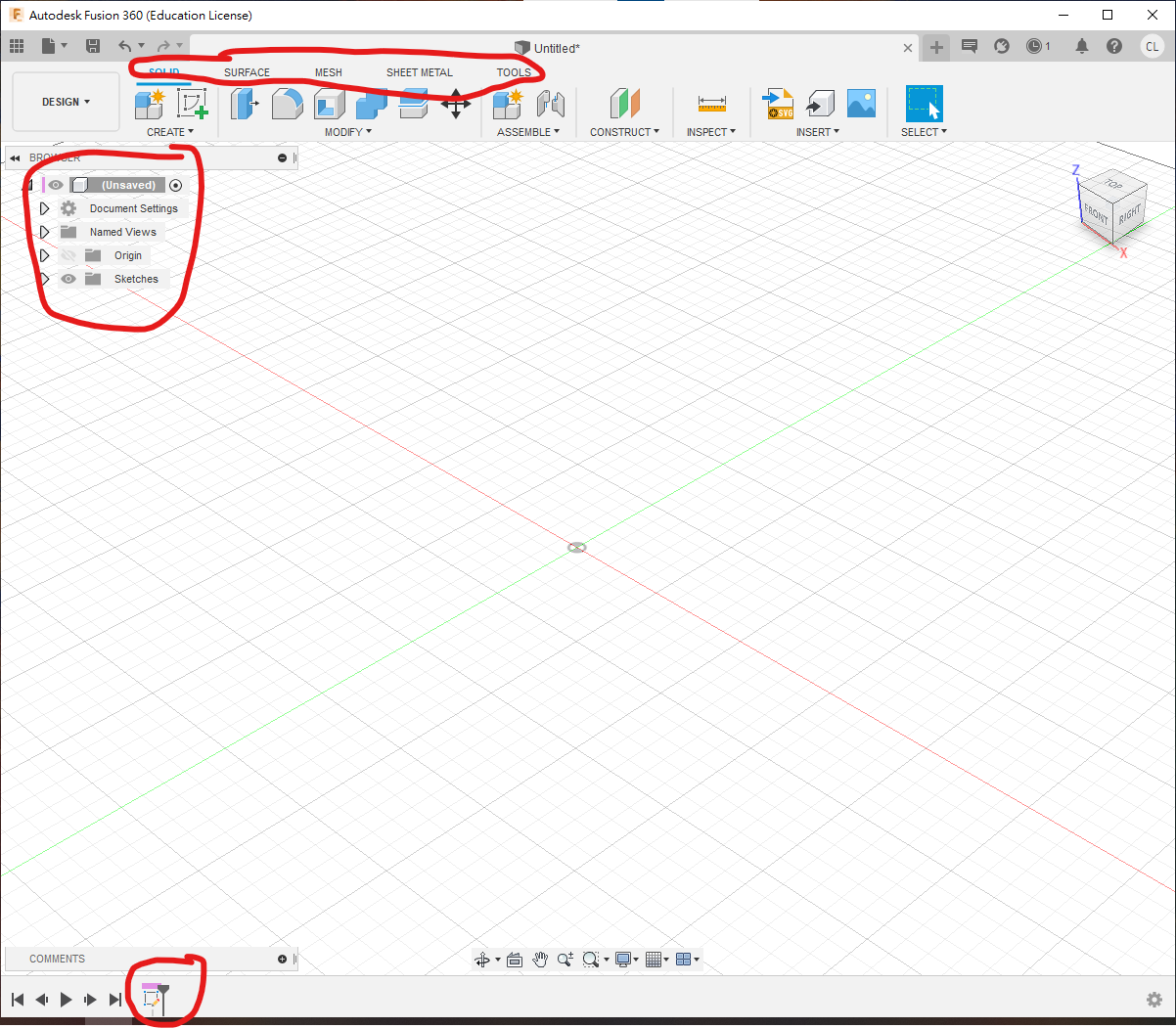
- Top: workspaces and tabs. Use the
Designmenu to switch among Design, Rendering, Drawing, Simulation, and other workspaces. Common Design tabs include Solid, Sheet Metal, and Tools. - Left: all parts in the current design. Components and sketches can have parent-child relationships. A common mistake is assigning a body to the wrong component.
- Bottom: the design history. Fusion 360 records feature operations so you can return to an earlier step and modify it, which is especially useful for 3D-printing projects.
Translation notice: This English page was generated automatically by AI and has not yet been reviewed by a human. It will be checked and revised page by page when time permits.